Your Guide to Mastering the LinkedIn QR Code
A LinkedIn QR code is your digital business card. This guide covers how to find, create, customize, and strategically place your code for maximum networking impact.
Josh · Dec 14, 2025 · 17 min read
- qr code
- networking
- professional development
A LinkedIn QR code is your digital business card, a unique, scannable code that links directly to your personal profile. Forget fumbling to spell out your name at a noisy conference; this is the fastest way to turn a handshake into a lasting digital connection.
The Power of an Instant Connection
Think about the last networking event you went to. How many times did you try to find someone on LinkedIn, only to get lost in a sea of similar names or give up because their username was a jumble of letters and numbers? The LinkedIn QR code cuts through all that noise, transforming a clunky process into a seamless, two-second exchange.
This isn’t just some tech gimmick; it’s a genuinely useful tool that reflects how we connect now. LinkedIn actually rolled this out back in 2017, but its popularity exploded when contactless interactions became the norm. The data backs this up—recent analysis shows that 44.6% of internet users between 16 and 64 scan at least one QR code every month. This widespread adoption means people know exactly what to do when they see one, making it a reliable networking asset.
Why It's a Networking Essential
Whipping out a QR code instead of a paper business card does more than just save trees. It subtly signals that you’re efficient, tech-savvy, and forward-thinking. It’s a small detail that makes a big impression.
Let's quickly look at what makes the LinkedIn QR code a must-have for any professional.
| Feature | Benefit |
|---|---|
| Direct Profile Link | Eliminates searching, spelling errors, and mistaken identity. |
| Instant Scan | Allows for on-the-spot connection requests, capturing interaction momentum. |
| Digital Format | A modern, eco-friendly alternative to traditional business cards. |
| Built-in Functionality | No third-party apps needed; it's right there in the LinkedIn app. |
This is about making it incredibly easy for people to connect with you, ensuring you're memorable for the right reasons.
This simple tool ensures you never miss a valuable connection due to the minor inconveniences that often derail follow-ups. It’s about making the next step effortless for both you and your new contact.
Building Connections with Efficiency
The real goal of networking isn't just to collect contacts; it's to build genuine relationships. By making the initial connection instant, you can spend less time on the logistics of swapping details and more time on the actual conversation.
This efficiency is a game-changer. Once that connection is made, the real work begins. Following up with a thoughtful, personalized message is crucial. For some great examples of how to do this well, check out our guide on email etiquette samples. It’s all about starting that new professional relationship on the right foot.
How to Find Your LinkedIn QR Code
Getting your hands on your LinkedIn QR code is simple, but the steps change depending on whether you’re on your phone or a computer. The mobile app is built for those quick, in-the-moment connections, while the desktop version is your go-to for grabbing a high-quality image for your business cards or presentations.
The Go-To Method: Using the Mobile App
Honestly, the fastest and most common way to pull up your code is with the LinkedIn app on your iOS or Android phone. It's perfect for those hallway conversations at a conference when you want to connect without fumbling to spell out your name.
Just open the app and tap the main search bar at the very top of your screen.
Look to the right of the search bar, and you'll spot a small QR code icon. Tapping that icon immediately pulls up the scanner screen.
By default, the app opens in "Scan" mode, ready to read someone else's code. To show them yours, simply tap the "My code" tab at the top. Your unique QR code will pop right up, ready for them to scan.
This screen is your command center for QR code networking on the go. From here, you can:
- Share instantly: Just hold up your phone for someone to scan.
- Save to your gallery: Tap "Save to photos" to download the QR code image for later.
- Send it out: Use the share button to send your code through text, email, Slack, or any other app.
As you can see in the screenshot from LinkedIn's own help center, the icon is right where you'd need it for quick access. They clearly designed this for real-world networking.
Grabbing Your Code on a Desktop
While the mobile app is great for face-to-face meetings, sometimes you need a crisper, high-resolution version for your marketing materials. That's where the desktop method comes in, though it's a bit more hidden.
First, log in to LinkedIn on your computer. From your homepage, navigate to your own profile by clicking your name or photo. From there, you'll want to find the option to edit your public profile and URL. It's on that settings page where LinkedIn gives you the option to create and download your QR code.
Why bother with the desktop version? Simple: it lets you download a clean PNG file. This is exactly what you need for things like presentation slides, your email signature, or a digital business card, where a blurry screenshot just won't cut it.
Having both mobile and desktop options means you're covered for pretty much any networking situation you can think of, whether you're connecting on the fly or preparing materials in advance.
Beyond the Basics with Custom QR Codes
LinkedIn's built-in QR code is a fantastic starting point—it’s quick, easy, and gets the job done. But let's be honest, it's a static link. It's functional, but for anyone who treats networking as a core part of their strategy, it’s also a missed opportunity. To really step up your game, you need a custom, dynamic QR code. This small shift turns a simple connection tool into a surprisingly powerful data-gathering asset.
The idea is simple: instead of using the default code, you use a third-party QR code generator to create a new one that links to your LinkedIn profile URL. Why bother? Because you gain complete control over how it looks and, more importantly, how it performs. You can finally ditch the generic black-and-white square and create a LinkedIn QR code that actually reflects your personal or company brand.
This simple infographic gives you a quick look at the standard process for finding and sharing your native LinkedIn QR code.
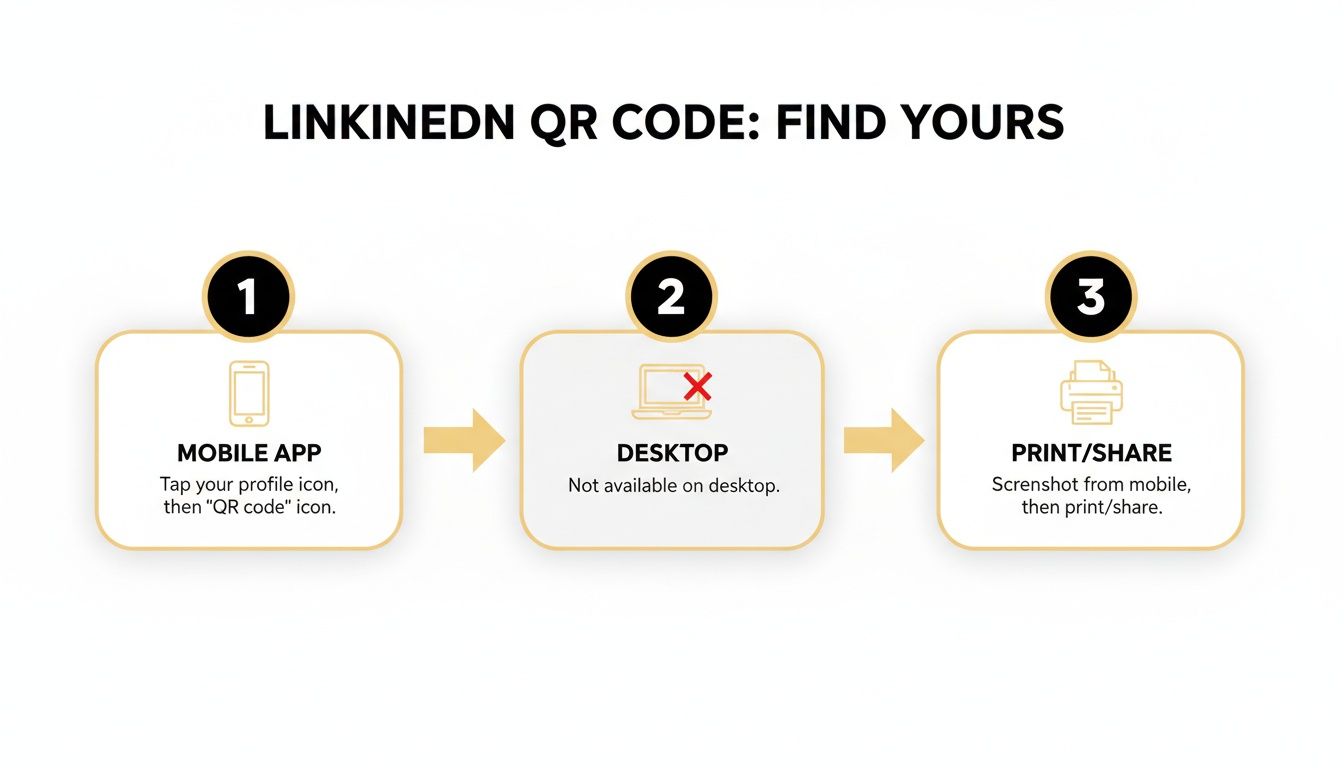
While this flow is perfect for basic use, customizing the code is where the real strategic advantage comes into play.
Elevating Your Brand with Custom Designs
First impressions matter, especially in a crowded conference hall or a fast-paced meeting. A custom QR code lets you move beyond the default design and weave in branding elements that instantly reinforce your professional identity. Think of it as a digital handshake.
With the right tool, you can tweak several visual components to make your code pop:
- Colors: Swap out the standard black and white for your company's brand palette or the primary colors from your personal website.
- Logo Integration: This is a big one. You can place your company logo or even a professional headshot right in the center of the code.
- Shape and Style: Some generators even let you change the shape of the data points from sharp squares to softer dots or other unique patterns.
This isn't just about aesthetics; a visually appealing and branded QR code is more inviting and recognizable, which naturally encourages more people to scan it.
The Power of Dynamic QR Codes and Analytics
Here’s where things get really interesting. The single greatest advantage of using a third-party tool is the ability to create a dynamic QR code. Unlike a static code where the URL is baked in forever, a dynamic code uses a short redirect link. This tiny technical difference opens up two massive opportunities for serious networkers.
First, it means you can edit the destination URL whenever you want, without ever having to reprint the QR code itself. Let’s say you update your LinkedIn profile's custom URL, or maybe you decide to send new connections to a portfolio page instead. Just log into your QR generator, update the link, and you're done. The code you printed on 500 business cards last month will now point to the new destination.
This flexibility is a game-changer. Imagine printing a massive banner for a trade show, only to realize you need to change the link. With a dynamic code, that’s a two-minute fix, not a four-figure reprinting disaster.
Second, and this is crucial, dynamic codes give you invaluable analytics. With LinkedIn's native code, you’re flying blind. You have no idea if anyone scanned it unless they follow through with a connection request. A dynamic QR code, however, tracks every single scan.
You can suddenly see real data behind your networking efforts:
- Total number of scans: How many people are actually engaging with your code?
- Location of scans: Get a general sense of where scans are happening (city/country).
- Time of scans: Discover when your code is most active—during an event, after, etc.
- Device type: Are more people scanning from an iPhone or an Android?
This data transforms your networking from a hopeful guessing game into a measurable, strategic activity. You can finally see which conference generated the most profile views or whether the QR code in your email signature is outperforming the one on your Zoom background.
Where to Place Your QR Code for Maximum Impact
You've created your LinkedIn QR code. Great. But that's only half the job. A QR code that no one sees is completely useless, so its real power comes from smart, strategic placement.
The key is to think about the context. Where will your ideal connections be? What's going on when they might have a moment to pull out their phone and scan? You want to integrate your code into both your physical and digital touchpoints so you're always ready to connect, no matter the situation.
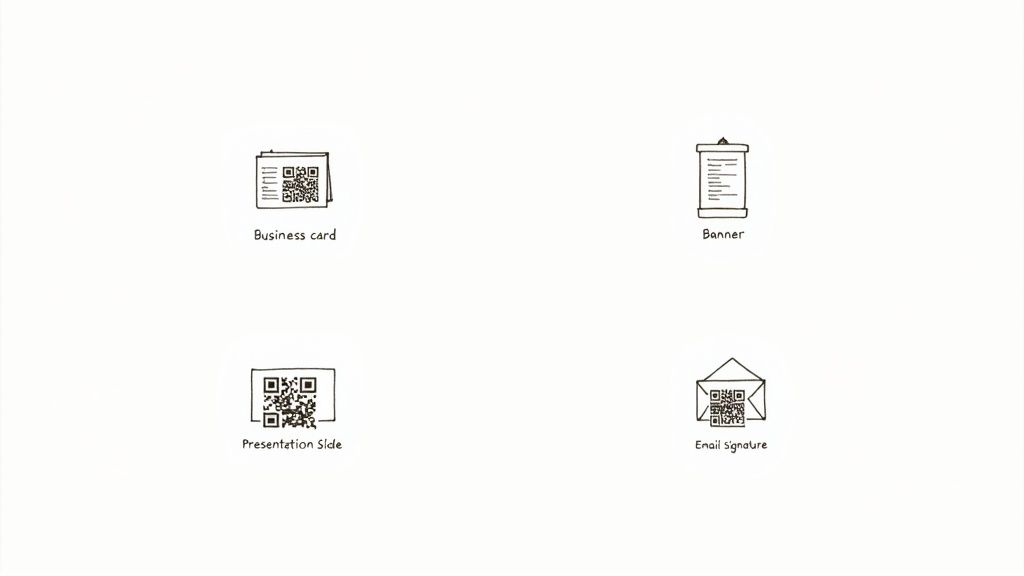
High-Impact Physical Placements
Face-to-face interactions are goldmines for QR code scans. The trick is placing it where it’s not just visible but also comes with a clear, implicit reason to use it.
- Business Cards: This is the most classic and, honestly, one of the most effective uses. Your card no longer just has your name and title; it becomes a direct gateway to your entire professional story on LinkedIn. Just make sure the code is at least 1 inch by 1 inch (2.5 cm x 2.5 cm) so it's easily scannable.
- Conference Banners and Name Badges: Think about a bustling trade show. Your name badge is valuable real estate. A small QR code allows people to connect without awkwardly interrupting a conversation you're already in. On your booth's banner, it acts as a silent lead-gen tool, working for you even when you're busy.
- Presentation Slides: Make your final slide your connection slide. A large, clear QR code next to your name and email gives everyone in the audience a quick, simultaneous way to find your profile. It's far more efficient than them trying to search your name later.
Pro Tip: Before you greenlight a massive print run of business cards or banners, always test your QR code. Print a draft on a regular piece of paper. Scan it with an iPhone. Scan it with an Android. Try it from a few feet away. A code that doesn't work is far more damaging to your credibility than having no code at all.
Smart Digital Placements
Your digital footprint provides just as many, if not more, opportunities to share your QR code. Here, you can often reach a much broader audience than you can with physical materials alone.
- Email Signatures: This one is a no-brainer. Embed the QR code image into your email signature with a simple call-to-action like "Connect with me on LinkedIn." Suddenly, every single email you send becomes a networking opportunity. It's especially effective in professional correspondence, like when sending out a formal meeting invitation letter template.
- Virtual Backgrounds: In our world of endless video calls, your Zoom or Microsoft Teams background is your personal billboard. Tuck your QR code into a corner where your head won't block it.
- Online Portfolios and Resumes: If you're sharing your resume or portfolio as a PDF, embedding a clickable QR code is a fantastic touch. It makes it incredibly simple for recruiters and hiring managers to jump straight to your LinkedIn profile with a single click or scan.
To help you decide where to focus your efforts, here's a quick breakdown of the most common placements and what to consider for each.
LinkedIn QR Code Placement Comparison
| Placement Location | Primary Use Case | Key Consideration |
|---|---|---|
| Business Cards | In-person networking, follow-ups | Ensure size is at least 1x1 inch for easy scanning. |
| Name Badges | Conferences, trade shows | Best for quick, passive connections in crowded environments. |
| Presentation Slides | Speaking gigs, webinars | Display on the final slide for mass audience engagement. |
| Email Signatures | Daily professional communication | Include a clear call-to-action like "Scan to Connect." |
| Virtual Backgrounds | Video calls, online meetings | Position it in a corner to avoid being obscured. |
| Resumes/Portfolios | Job applications, freelance proposals | Makes it seamless for recruiters to view your full profile. |
| Event Banners | Booths, promotional events | Must be large enough to scan from a distance of several feet. |
Ultimately, context is everything. A QR code floating in space without explanation is unlikely to get scanned. Always pair it with a brief instruction—"Scan to see my work" or "Connect with me on LinkedIn"—to guide people. The easier and more intuitive you make the process, the more connections you'll build.
Integrating Your QR Code with Your Digital Toolkit
While slapping your LinkedIn QR code on physical items like business cards is a great start, the real magic happens when you weave it into your digital presence. This is where you create a smooth, connected journey for anyone who discovers you online, making it effortless for them to move from passive observer to active connection.
Your personal website or digital portfolio is prime real estate. Think beyond a simple text link buried in your footer. Embedding the QR code image directly on your "About Me" or "Contact" page creates a powerful, visual call-to-action. Someone browsing your site on their desktop can simply point their phone at the screen and connect—no typing, no searching.
This subtle change turns a passive website visit into a genuine networking opportunity. It’s an open invitation to connect, and it removes all the friction from the process.
Connecting Your Calendar to Your Network
This is where things get really smart. Integrating your QR code with your booking and scheduling tools automates your networking at the most crucial moments of a new professional relationship.
Picture this: a new client books a meeting with you. The automated confirmation email they receive contains your QR code, along with a friendly note like, "Looking forward to our chat! Feel free to connect with me on LinkedIn beforehand." This simple addition accomplishes a few key things almost instantly:
- Builds Instant Credibility: It nudges them to check out your professional background, endorsements, and experience, reinforcing their decision to work with you.
- Deepens the Relationship: It shifts the dynamic from purely transactional to a long-term professional connection right from the start.
- Opens Communication Channels: It gives you another avenue for follow-ups, sharing relevant articles, or staying in touch down the line.
Tools like Kejoola are built for this kind of seamless integration. When you customize your booking confirmation pages or emails to include your QR code, you transform a standard administrative message into a strategic networking touchpoint.
This is a perfect example of how service-based professionals use modern platforms to create a polished, client-friendly experience. Embedding a LinkedIn QR code directly into this booking flow is a natural and powerful next step.
A Real-World Integration Example
Let’s walk through a practical scenario. Say you're a freelance consultant who uses an online calendar to manage client appointments. Once you’ve set up your availability, you can configure the automated confirmation email.
When a client selects a time, the system fires off an email that doesn't just confirm the meeting details. It also includes your QR code and perhaps a link to the video call.
This simple automation turns a logistical email into a full-fledged pre-meeting packet. Your new client gets everything they need in one place: the meeting time, the video link, and a one-scan way to connect with you on a professional level.
By the time you actually hop on the call, you’re often already connected on LinkedIn. This level of thoughtful integration demonstrates professionalism and a genuine commitment to building solid relationships, not just closing deals. And if you're frequently setting up virtual meetings, it pays to master the basics—you can learn how to create a Google Meet link to streamline your scheduling even further.
Solving Common LinkedIn QR Code Problems
Even the best tools hit a snag sometimes. When you're in the middle of a great networking conversation and your LinkedIn QR code suddenly won’t scan, it can be an awkward moment that completely breaks the flow. The good news is that the fix is almost always quick and painless.
More often than not, the problem isn't with the code itself but with the environment or the way it's printed. A smartphone camera needs clear contrast and decent lighting to read a QR code. If you're in a dimly lit conference hall or the code is printed on a glossy business card that's catching the light, you’re going to have trouble.
The physical size and clarity of the printed code are also make-or-break factors. A code that's too small—I'd say anything under 1x1 inch is risky—or printed with a low-resolution file will just come out as a blurry, unreadable mess.
Pinpointing the Scanning Issue
If your code is being stubborn, run through this quick mental checklist. Nine times out of ten, the culprit is one of these usual suspects:
- Lighting and Glare: Is the room too dark? Is a nasty glare from an overhead light washing out the code? Try tilting the card or moving to a better-lit spot.
- Distance and Focus: Is the phone practically touching the code, or is it too far away? Give the camera a second to adjust its focus properly. Sometimes just moving the phone back a few inches does the trick.
- Print Quality: Take a close look. Is the code sharp? Or does it look a bit fuzzy? Ensure it's printed on a non-reflective material with high contrast—black on white is classic for a reason.
- Code Obstruction: Is your thumb covering a corner? Is the code crammed right up against the edge of your flyer or banner? Scanners need a bit of breathing room.
One of the most common mistakes I see is forgetting to leave a "quiet zone"—a simple blank margin around the entire QR code. Without that empty space, a phone's scanner can't easily distinguish the code from nearby text or graphics.
Fixing a Broken QR Code Link
So, what happens if the code scans perfectly but leads to a "page not found" error? This is a classic sign of a broken or outdated URL, and it almost exclusively happens with custom or dynamic QR codes, not the native one generated directly by the LinkedIn app.
If you created your code using a third-party generator, the solution is usually straightforward. Just log back into that platform's dashboard and double-check the destination URL you linked to your QR code. It could be a simple typo, or maybe you forgot to update it after changing your LinkedIn profile's custom URL.
The great thing about dynamic QR codes is that you can update the destination link on the back end. Once you correct the URL in the generator’s settings, the fix is instant—no need to reprint a single business card.
Here are some of the questions that pop up most often as people start weaving LinkedIn QR codes into their networking toolkit. Let's get them answered so you can use your code with confidence.
Does My LinkedIn QR Code Ever Expire?
Good news: the standard QR code you get from the LinkedIn app itself is permanent. It's a static code that's hard-wired directly to your profile URL. As long as your LinkedIn profile is active, that code will keep working for you.
Now, if you've gone the extra mile and created a dynamic QR code through another service, its lifespan is a different story. That code's functionality is tied to your account with that provider. As long as your subscription is active, the code will work just fine and you'll be able to edit where it points.
Can I See Who Scanned My QR Code?
This is a big one. LinkedIn’s built-in QR code feature doesn't offer any analytics. You won’t get a notification or report telling you who scanned it. The only way you'll know someone used your code is if they actually follow through and send you a connection request.
If you want to track scans—how many people scanned your code, at what time, and from what general location—you absolutely need a dynamic QR code. These are created using third-party QR generators that come with tracking and analytics dashboards, giving you valuable insight into how your code is performing.
Is It Safe to Share My QR Code Publicly?
Yes, it's perfectly safe. Think of your QR code as a visual shortcut to your public LinkedIn profile. It doesn't grant any special permissions or expose any information that isn't already visible to someone who looks you up by name.
The key is to share it in the right places. Treat it just like your profile URL—it's meant for professional contexts where you're actively looking to make new connections.
Ready to create a professional online presence that turns connections into clients? Kejoola gives you an AI-powered website and smart booking system in minutes, no technical skills required. Start your 14-day free trial today!