How to create google meet link: The Definitive Guide
Learn the fastest ways to create a Google Meet link from your desktop, mobile, or calendar. This guide covers instant meetings, scheduled calls, and automation for business.
Josh · Dec 12, 2025 · 14 min read
- Google Meet
- Video Conferencing
- Productivity
- Scheduling
Knowing how to quickly generate a Google Meet link is a modern workplace essential. The fastest way is by heading straight to meet.google.com and hitting the "New meeting" button. From there, you get a few choices: grab a link for later, jump into a call right away, or set something up in your calendar. It's designed to be nearly frictionless.
Creating a Google Meet Link in Seconds
The seamless integration with Google Workspace is what makes creating a Meet link so easy, and it’s a big reason why the platform is so popular. In fact, Google Meet now supports over 300 million monthly active users, a number that highlights its role as a go-to communication tool. For more context on its growth, check out these Google Meet statistics.
What makes it so effective is that anyone with a Google account can spin up a meeting in seconds—no extra software, no complicated setup. When you just need to get a call started, that simplicity is everything. Google gets this, which is why the homepage gives you three clear paths forward.
Your Three Core Options
Each option is built for a different scenario, whether you need a spontaneous one-on-one or a formally scheduled team sync. Nailing down which one to use will make your workflow that much smoother.
This flowchart breaks down the decision-making process right from the Google Meet homepage.
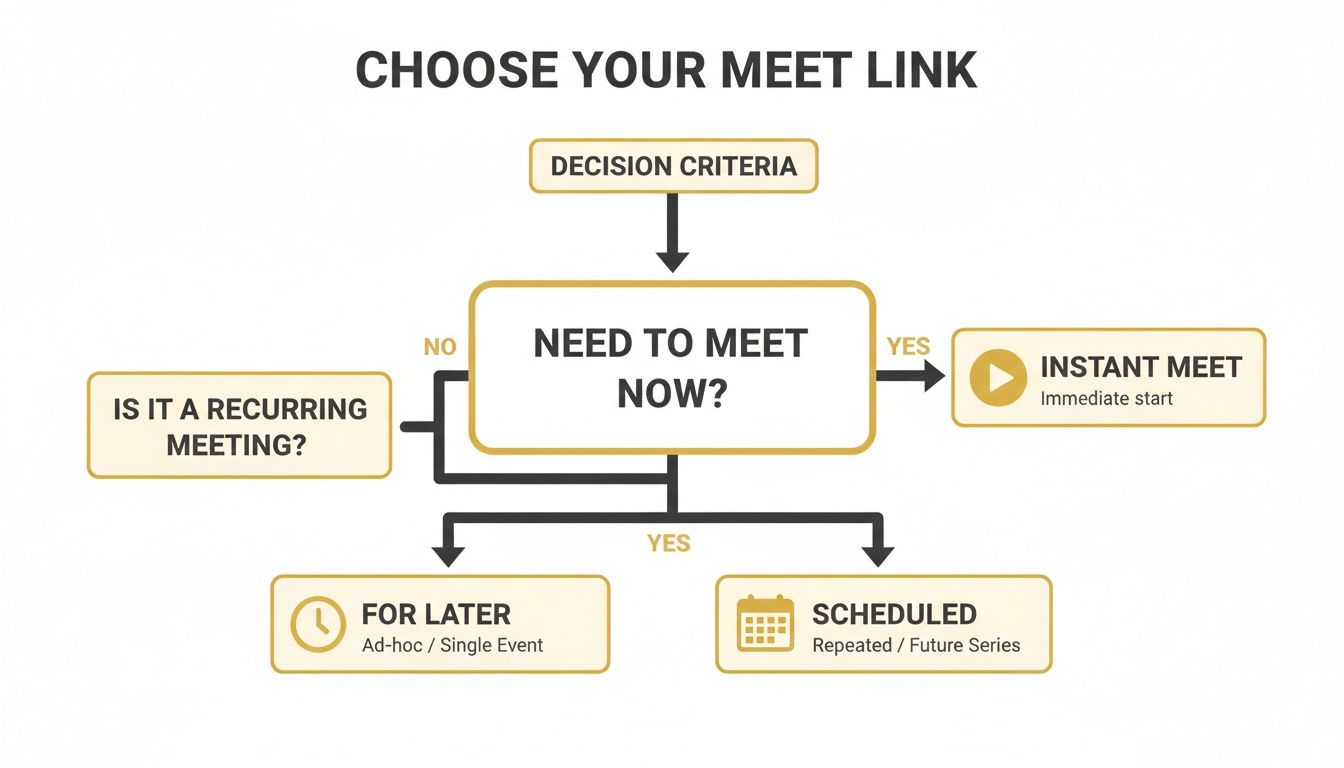
As you can see, the right choice really just depends on your immediate needs. Do you need a link to paste into a Slack message? A room to join this very second? Or an event that needs to live on your calendar?
To make it even clearer, here’s a quick breakdown of when to use each method.
Choosing the Right Google Meet Creation Method
| Method | Best For | Speed | Scheduling Features |
|---|---|---|---|
| Create a meeting for later | Quickly grabbing a link to share in an email or chat. | Instant | None |
| Start an instant meeting | Unplanned calls that need to happen now. | Immediate | None |
| Schedule in Google Calendar | Formal meetings with specific times, guests, and details. | Planned | Full |
At the end of the day, picking the right option helps you stay organized. It’s the difference between a last-minute troubleshooting session and a well-planned weekly sync with your entire team.
Knowing how to spin up a Google Meet link on the fly is a fundamental skill in today's workplace. The absolute fastest way? Just pop over to meet.google.com and click the big blue "New meeting" button.
Right away, you’re given a few choices: you can create a link for later, start a call immediately, or schedule a meeting in Google Calendar. It’s designed to be as straightforward as possible.
Getting a Google Meet Link in Seconds
The real magic behind Google Meet is its deep integration with the rest of Google Workspace, which is a huge part of why it's so popular. With over 300 million monthly active users, it has become a staple for communication. That kind of growth, detailed in these Google Meet statistics, shows just how essential it is.
The beauty of the system is that anyone with a Google account can create a meeting in a matter of seconds. No extra software downloads, no complicated setup hoops to jump through. When you just need to get a conversation started, that simplicity is everything. Google clearly understands this, which is why the homepage offers three distinct paths forward.
Your Three Core Options
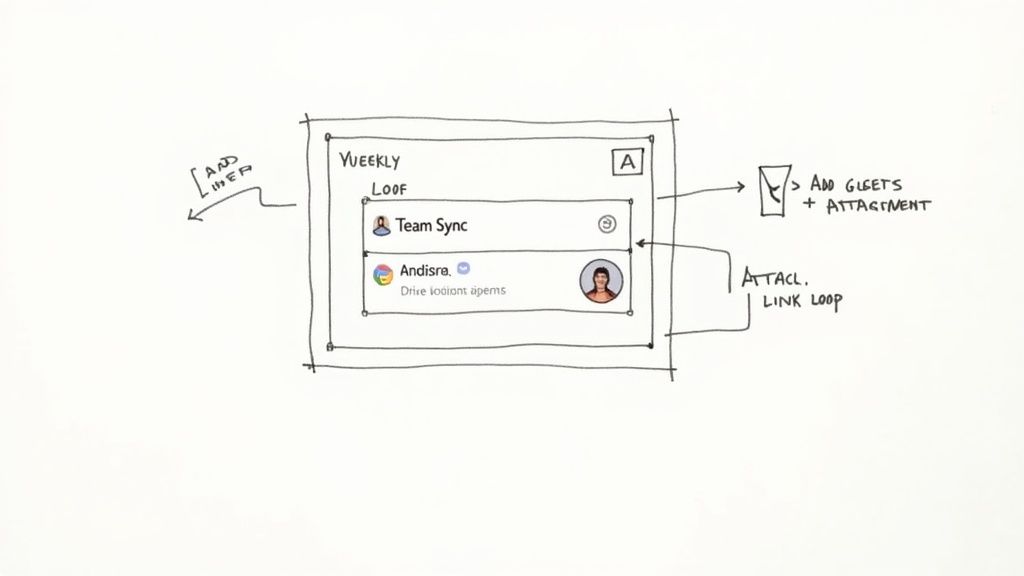
Each option caters to a different, common scenario—from a spontaneous one-on-one chat to a formally scheduled weekly team sync. Figuring out which one to use in the moment will make your workflow that much smoother.
This sketch shows the decision you're making right from the Google Meet homepage.
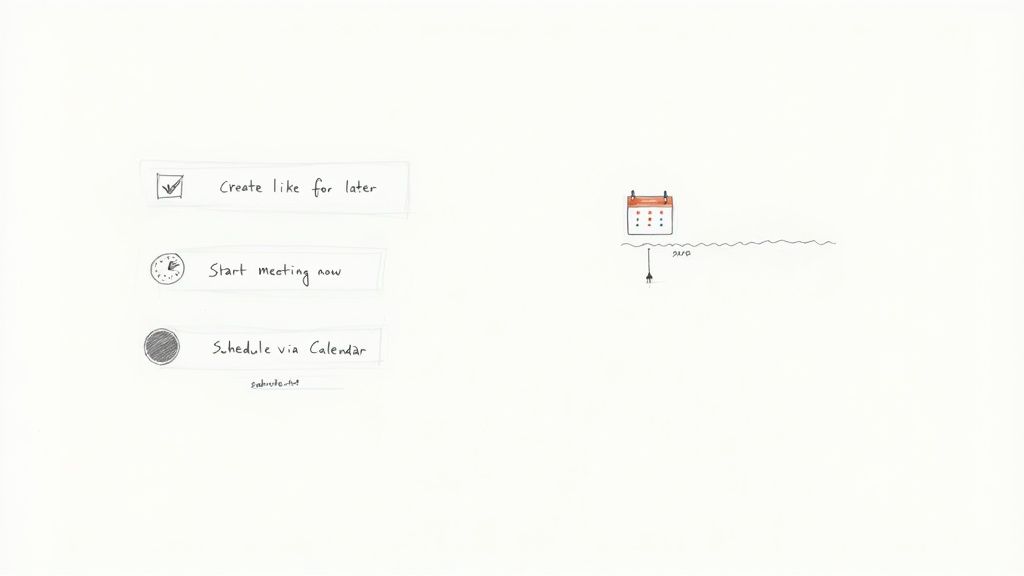
As you can see, the right choice really boils down to what you need right now. A link to drop in a Slack message? A room to jump into this very second? Or a formal event that needs to live on your calendar?
To make it even clearer, here’s a quick breakdown of when I use each one.
Choosing the Right Google Meet Creation Method
| Method | Best For | Speed | Scheduling Features |
|---|---|---|---|
| Create a meeting for later | Quickly grabbing a link to share in an email or chat. | Instant | None |
| Start an instant meeting | Unplanned calls that need to happen now. | Immediate | None |
| Schedule in Google Calendar | Formal meetings with specific times, guests, and details. | Planned | Full |
Ultimately, picking the right option is about staying organized. It’s what separates a frantic, last-minute troubleshooting session from a well-planned weekly sync that everyone is prepared for.
Generating Meet Links from Your Smartphone
In a world where your office is often just your pocket, being able to create a Google Meet link from your phone isn't a luxury—it's a necessity. Maybe you're on your commute and need to hop on an impromptu client call, or you're scheduling a team sync from a coffee shop. The mobile app gives you the flexibility that modern work demands.
This mobile-first approach is a huge reason for the platform's wide adoption. In fact, a staggering 64% of Google Meet sessions start on smartphones or tablets. This trend is global, too. Meet holds a massive market share in countries like Malaysia (74%) and Brazil, where on-the-go access is critical for both business and education. You can dive deeper into these video conferencing trends at zebracat.ai.
A Quick Walkthrough of the Mobile App
The official Google Meet apps for iOS and Android deliver a clean, focused experience. They mirror much of the desktop functionality but are smartly optimized for a smaller screen. When you open the app, you’re greeted with a clear "New meeting" button.
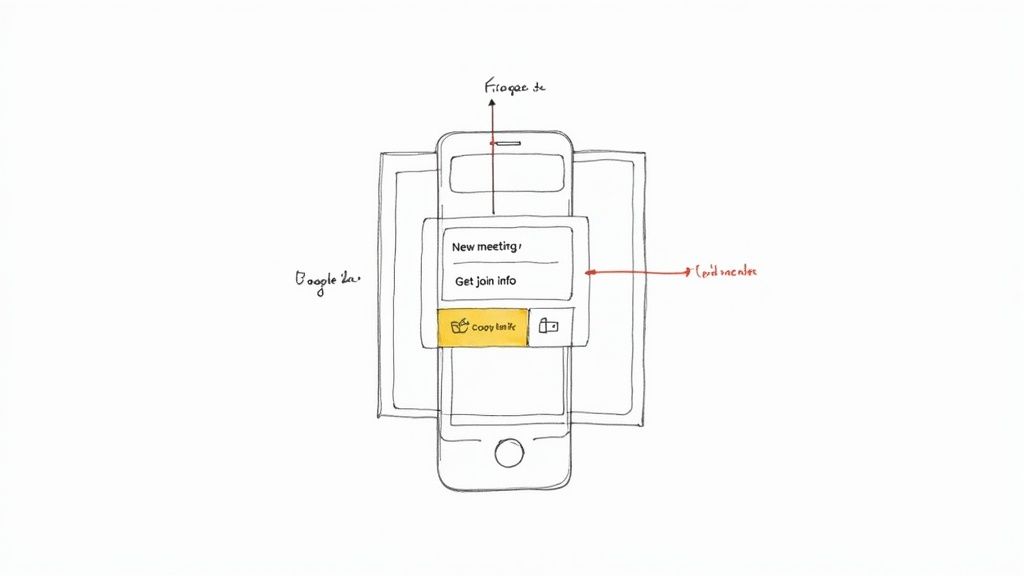
This is what you'll see on the app's home screen—the same straightforward options.
The interface presents the same core choices as the desktop version: get a link to share, start an instant meeting, or schedule it in your calendar. This consistency makes jumping between your computer and phone feel completely natural.
For example, if you tap "Get a meeting link to share," the URL is instantly copied to your clipboard. From there, you can paste it directly into a text, an email, or another app without missing a beat. It's the perfect solution for those moments when you need to coordinate fast.
The real power of the mobile app is how it ties directly into your phone's ecosystem. When you share a link, it uses the native share sheet, making it feel like a built-in feature of your device.
Scheduling a meeting from the mobile app is just as seamless. It automatically opens Google Calendar, letting you pull in attendees directly from your phone's contacts. For iPhone users, it’s worth taking a moment to learn how to sync Google Calendar with iPhone to keep everything perfectly aligned. This simple step bridges the gap between your professional schedule and your personal device, ensuring you never miss a beat.
Integrating Meet Links into Your Calendar Workflow
For anyone who lives by their schedule, a meeting link isn't just a URL—it’s a critical piece of your entire workflow. While generating a link on the fly is great for impromptu chats, the real power comes from embedding this process directly into Google Calendar. This is where you move from just creating links to building a truly organized and efficient scheduling system.
When you create an event in Google Calendar, it does more than just block out time. It automatically generates and attaches a unique Google Meet link, corralling every detail—who, what, when, where—into a single, easily accessible place. For client-facing roles where a smooth, professional experience is non-negotiable, this method is a game-changer.
This integrated approach guarantees every participant gets the link, agenda, and any necessary files in one go. Better yet, it automatically adds the meeting to their own calendars, significantly cutting down on no-shows.
Advanced Calendar Tactics for Efficiency
One of the most useful features I rely on is setting up recurring meetings. Got a weekly team sync or a monthly client review? Just create one calendar event, set it to repeat, and you're done. The Google Meet link remains the same for every single session, which means no more scrambling to send out new invites every week. That persistent link becomes a reliable, familiar gateway for your team.
You can also manage guest permissions right from the calendar invite. Decide whether attendees can invite others or see the full guest list—this gives you precise control over the meeting's privacy. To take it a step further, crafting a clear and formal invitation using a professional meeting invitation letter template can set the right tone from the very beginning.
The true advantage of Google Calendar integration is context. Attaching a project brief from Google Drive or a presentation from Google Slides directly to the event ensures everyone arrives prepared and on the same page.
Let's look at how to really dial in your calendar events for a polished, professional setup.
When creating a meeting in Google Calendar, a few key settings can make all the difference between a chaotic call and a well-run meeting. Paying attention to these details upfront saves a lot of headaches later.
Key Google Calendar Settings for Your Meet Events
| Setting | Function | Best Practice |
|---|---|---|
| Guest Permissions | Controls what attendees can do. | For sensitive or private meetings, uncheck "Invite others" to prevent unexpected guests from joining. |
| Event Notifications | Reminds attendees about the meeting. | Set a default 10-minute notification. It’s the perfect nudge to help everyone log on a few minutes early. |
| Attachments | Provides context and materials. | Always attach agendas or relevant documents directly from Google Drive so they're easily found within the calendar event. |
| Recurring Events | Automates scheduling for regular meetings. | Use the "Repeat" function for your weekly or monthly syncs. This creates a single, persistent link that never changes. |
Mastering these simple settings transforms your calendar from a basic scheduler into a powerful command center for all your virtual meetings.
A meeting link is basically the key to your virtual room, so controlling who has a copy is non-negotiable for keeping your conversations private and professional. Knowing how to create a Google Meet link is the easy part. The real skill is making sure only the right people can actually use it to get in.
Google Meet gives you a solid set of host controls that let you be the master of your domain. Think of these tools as your way to prevent disruptions and keep uninvited guests out, which is crucial for maintaining a focused, secure meeting.
Here's a simple way to think about it: posting a public link on social media is like leaving your front door unlocked. Sending a private calendar invite, on the other hand, is like personally handing a key to a specific guest. For any professional meeting, the second option is always the smarter choice.
Getting a Handle on Host Controls
Once the meeting is live, you have a few powerful tools to manage who can do what. Getting comfortable with these features takes just a few minutes but can save you a major headache down the road.
Here are the key controls you'll want to master:
- The Waiting Room: By default, Google Meet makes anyone who isn't on the calendar invite (or from outside your organization) wait to be admitted. This feature is your virtual bouncer, giving you the final say on who gets past the velvet rope.
- Screen Sharing Permissions: You can decide who gets to share their screen. If you're running a webinar or a formal presentation, it's a good idea to limit this to just the host to prevent any accidental (or intentional) screen takeovers.
- Participant Management: As the host, you have the power to mute anyone to cut out background noise. You can also remove disruptive attendees entirely and even end the meeting for everyone at once, making sure the call is officially closed.
The most secure meeting is one where you know exactly who's showing up. Whenever you can, default to sending private Google Calendar invites instead of just sharing the raw link. This automatically creates an attendee list and tightens up your security settings.
At the end of the day, these controls are what turn a basic video call into a professionally managed space. Taking a quick moment to review these settings before an important meeting isn't just a good idea—it's standard practice.
Automating Meet Links for Your Business
If your business runs on appointments, you know the drill. Someone books a time, and then you have to manually jump into Google Meet or Calendar, create a unique link, copy it, and paste it into a confirmation email. It's a small task that quickly becomes a massive time-sink, not to mention a prime opportunity for human error. Sending the wrong link or forgetting one altogether looks unprofessional and can cost you a client.
This is exactly where automation completely changes the game. By hooking Google Meet into a smart booking system, you can cut out the manual work for good.
Let Your Calendar Do the Heavy Lifting
This is what platforms like Calendly, SavvyCal, or our own Kejoola were built for.
The workflow is simple but powerful. When a client picks a time on your scheduling page, the system instantly generates a unique Google Meet link just for that meeting. That link gets automatically inserted into the calendar invitation, which is then sent to both you and your client. No more copy-pasting.
The impact is immediate.
- Slash your admin time: Stop wasting minutes on every single booking. Let the software handle the logistics so you can focus on the actual meeting.
- Give clients a seamless experience: Your clients get a clean, professional calendar invite with everything they need in one place. It just works.
- Drastically reduce no-shows: Most scheduling tools send out automated reminders. When the Meet link is right there in the reminder, it's that much easier for your client to show up on time.
Connecting your booking system to Google Meet turns a series of manual clicks into a single, automated action. It’s the difference between actively managing your schedule and letting your schedule manage you.
At the end of the day, this kind of integration turns your booking process from a logistical headache into a smooth, professional machine. It's a similar principle to optimizing your Outlook scheduling emails for maximum clarity—every single touchpoint with a client should be effortless and professional, right from the very start.
Common Questions About Google Meet Links
Even a simple tool like Google Meet can have its quirks. After creating hundreds of these links for everything from team stand-ups to client demos, I've run into a few common questions that pop up again and again. Here are the answers to clear things up.
Can I Create a Google Meet Link Without a Google Account?
The short answer is no. To actually create and host a meeting, you need a Google account. It's the key that unlocks the whole system.
However, the people you invite usually don't need one to join. They can often click the link and get straight in as a guest, though this can vary depending on the security settings of your Google Workspace account. For the smoothest experience and access to all the features, joining with a Google account is always the best bet.
How Do I Make a Recurring Meet Link That Never Changes?
This is a big one, and the most reliable method is using Google Calendar. When you set up a new event and add Google Meet conferencing, just set the event to repeat—daily, weekly, whatever you need. That link will remain the same for every single occurrence. It's perfect for those regular team check-ins or ongoing project calls.
A common mistake I see is people using the "Create a meeting for later" option for recurring calls. Those links are temporary and can expire. A calendar-based link, on the other hand, stays active as long as the event is on the books.
Can I Create a Custom URL for My Google Meet Link?
Unfortunately, you can't create a slick, fully custom vanity URL like meet.google.com/your-company-name. For security reasons, the standard links are a random string of characters.
The next best thing, if you're a Google Workspace user, is to create a nickname. This gives you a more memorable link, like meet.google.com/enter/weekly-sync, which is much easier to share verbally with people inside your organization.
Does a Google Meet Link Expire?
Yes, they absolutely can. If you generate a link from the Meet homepage for an instant meeting or one "for later," it has a shelf life. It's not meant to last forever.
In contrast, a link attached to a Google Calendar event is tied to that event's existence. As long as the event is on the calendar, the link will work. For any important or long-term meeting, my advice is always the same: use Google Calendar. It's the safest way to ensure your link doesn't go stale.
Ready to stop manually creating meeting links for every booking? Kejoola automatically generates unique Google Meet links for every appointment and embeds them directly into your calendar invites. Start your free 14-day trial and put your booking process on autopilot.


