Craft the Perfect Confirm Appointment Email to Reduce No-Shows
Learn how to craft the perfect confirm appointment email to reduce no-shows, build client trust, and automate your workflow with our expert guide and templates.
Josh · Feb 15, 2026 · 17 min read
- email marketing
- appointment scheduling
- customer communication
- small business
A confirm appointment email is that first, crucial message a client gets right after booking with you. Think of it as an instant digital handshake. It confirms all the important stuff—date, time, location—and acts as your front-line defense against the chaos of no-shows and last-minute cancellations.
Why Your Business Needs a Great Confirm Appointment Email
Let's be honest, client no-shows are more than just a headache. They're a direct hit to your bottom line and can throw your entire day off schedule. For any service business, a missed appointment is a slot you can't fill and revenue you can't get back. This is where smart, proactive communication makes all the difference.
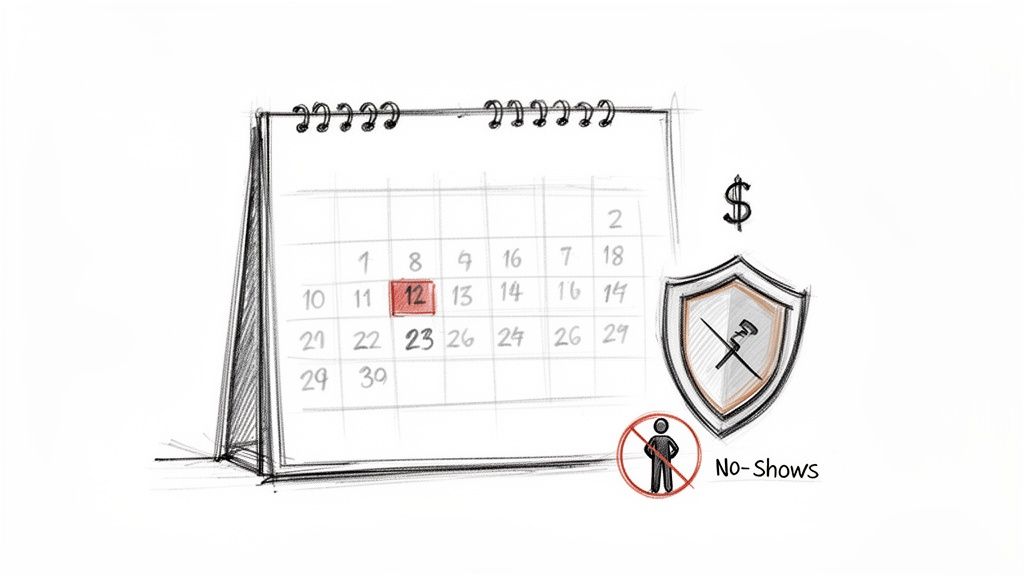
Remember the old days of playing phone tag? Manually calling every client, leaving voicemails, and just hoping they’d show up. It's draining and wildly inefficient. A well-crafted confirmation email completely changes the game. It establishes your professionalism and starts building client trust from the moment they book.
The Real Cost of No-Shows
For businesses like yoga studios, consulting firms, or salons, a few no-shows a week can seriously dent your revenue. The good news? It's a solvable problem. Businesses that use automated confirmation emails and reminders see their no-show rates drop by 25-40% on average. Some have even seen reductions as high as 90%.
A simple, automated workflow turns a "maybe" into a solid booking. For a small team, that's found money. This first email is a cornerstone of any effective B2B appointment setting playbook, ensuring your hard-earned leads don't just disappear into the ether.
Building Trust Right from the Start
This email does more than just lock in a date. It’s your first opportunity to set the tone for the entire client experience. It accomplishes a few key things right away:
- It reassures your client. The email instantly confirms their booking was successful, so there's no room for doubt or anxiety.
- It shows you're organized. A professional, automated message signals that you have your act together, which inspires confidence in your services.
- It puts everything in one place. All the details they need are right there in their inbox, which cuts down on back-and-forth questions and miscommunications.
This isn't just a notification; it's a powerful customer service tool. For any service-based business trying to run a tighter ship, mastering this email is a must. For a deeper dive, check out our guide on https://kejoola.com/blog/how-to-reduce-no-shows-appointments for more practical strategies.
A confirm appointment email is that first, crucial message a client gets right after booking with you. Think of it as an instant digital handshake. It locks in the important stuff—date, time, location—and serves as your front-line defense against the chaos of no-shows and last-minute cancellations.
Why Your Business Needs a Great Confirm Appointment Email
Client no-shows are more than just a headache; they're a direct hit to your bottom line and can throw your entire day into disarray. For any service business, from a salon to a consulting firm, a missed appointment is a slot you can't fill and revenue you can't get back. This is where smart, proactive communication changes everything.
Remember the old days of playing phone tag? Manually calling every client, leaving voicemails, and just hoping they’d show up. It's draining and wildly inefficient. A well-crafted confirmation email, on the other hand, establishes your professionalism and starts building client trust from the moment they book.
The Real Cost of No-Shows
For businesses like yoga studios, therapy practices, or financial advisors, even a few no-shows a week can seriously dent revenue. The good news? It's a solvable problem.
Businesses that use automated confirmation emails and reminders see their no-show rates drop by 25-40% on average. I've even seen some clients reduce them by as much as 90% just by implementing a solid confirmation and reminder sequence.
A simple, automated workflow turns a "maybe" into a solid booking. For a small team, that's found money. This first email is a cornerstone of any effective communication strategy, ensuring your hard-earned leads don't just disappear into the ether.
Building Trust Right from the Start
This email does more than just lock in a date. It’s your first opportunity to set the tone for the entire client experience. It accomplishes a few key things right away:
- It reassures your client. The email instantly confirms their booking was successful, so there's no room for doubt or anxiety.
- It shows you're organized. A professional, automated message signals that you have your act together, which inspires confidence in your services.
- It puts everything in one place. All the details they need are right there in their inbox, which cuts down on back-and-forth questions and miscommunications.
This isn't just a notification; it's a powerful customer service tool. For any service-based business trying to run a tighter ship, mastering this email is a must. We cover more advanced strategies for this in our guide on how to reduce appointment no-shows.
The Anatomy of an Effective Confirmation Email
A truly effective confirm appointment email is more than a simple notification; it's a carefully constructed piece of communication designed to prevent confusion and reinforce a client's decision to book with you. Each component plays a vital role in creating a seamless, professional experience.
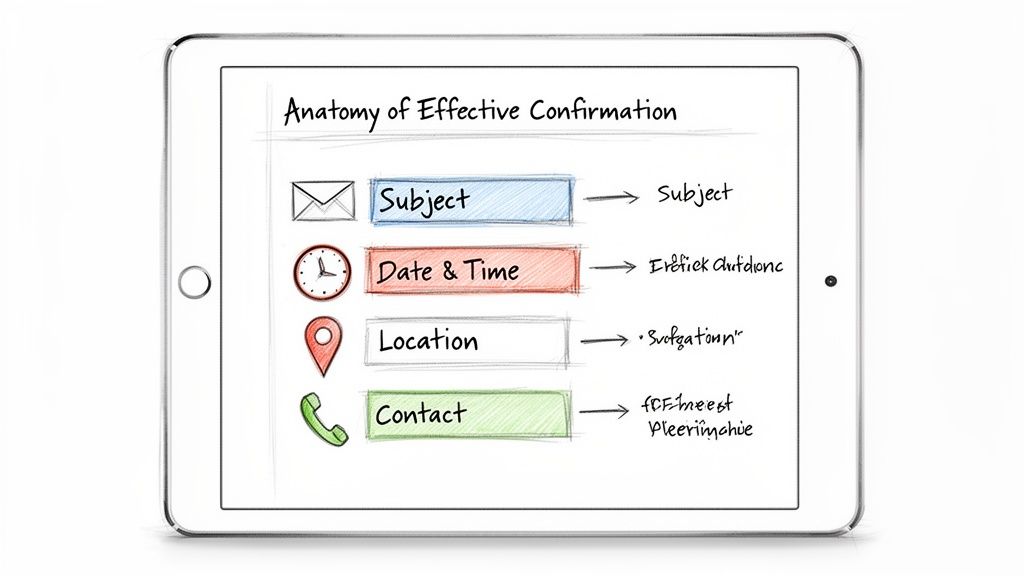
The thinking behind it is simple: clarity removes friction. When a client feels confident about their upcoming appointment details, they are far more likely to show up.
The Make-or-Break Subject Line
In a crowded inbox, your subject line is everything. Research shows that 35% of recipients open an email based on the subject line alone, and pairing it with personalization can boost open rates by 29%. Forget clever marketing slogans here; clarity wins every time.
A strong subject line should always include:
- Purpose: "Appointment Confirmed" or "Your Booking Details"
- Your Business Name: "with Sarah's Salon"
- Key Details: The date and time
A business consultant’s subject line, for example, might be: "Confirmed: Your Strategy Session with Dave on Oct 26 at 2 PM." It's direct, informative, and impossible to misinterpret. To dive deeper into this, it’s worth understanding how to increase email open rates across the board.
Core Appointment Details
This is the heart of your email. Present this information cleanly, using bold text or bullet points to make it instantly scannable.
- Service: "90-Minute Deep Tissue Massage"
- Date: "Wednesday, November 5, 2024"
- Time: "3:00 PM (EST)" — The time zone is non-negotiable, especially for virtual appointments.
- Location: Provide a full, clickable address for Google Maps or a clear video call link (e.g., Zoom, Google Meet).
- Provider: "with your therapist, Maria."
For example, a therapist needs to be explicit: "Your Session with Dr. Anya Sharma on Tuesday, Nov 4 at 10:00 AM (PST) via our Secure Portal." This level of detail removes all guesswork and anxiety for the client.
Pro Tip: Always include an "Add to Calendar" link for Google, Outlook, and iCal. This small feature dramatically increases the chances of the appointment being remembered, turning a simple email into an active part of your client's schedule.
Easy Rescheduling and Contact Info
Life happens. Making it easy for clients to reschedule or cancel is just good business. Provide a clear, one-click link to manage their booking. This empowers them and prevents them from simply not showing up because changing the appointment felt like too much work.
Finally, include your business name, phone number, and a reply-to email address. This reassures clients that a real person is on the other side if they have questions. It's a simple touch that builds trust and shows you care about their experience.
To see these principles in action, let's look at a quick before-and-after comparison. It’s amazing what a few small changes can do.
Confirmation Email Checklist Before and After
| Component | Ineffective Example | Optimized Example |
|---|---|---|
| Subject Line | Your Appointment | Confirmed: Your Consultation with Dr. Evans on Nov 10 at 2 PM (EST) |
| Greeting | Hello, | Hi [Client Name], your appointment is confirmed! |
| Core Details | Your appointment is on Nov 10 at 2. | • Service: New Patient Consultation • Date: Tuesday, November 10, 2024 • Time: 2:00 PM (EST) |
| Location | Our office address is 123 Main St. | Location: 123 Main St, Suite 400, Anytown, USA View on Google Maps |
| Policy Links | You can cancel by calling us. | Need to make a change? [Reschedule or Cancel Here] Please review our [24-Hour Cancellation Policy]. |
| Calendar Link | (Missing) | [Add to Google Calendar] | [Add to Outlook/iCal] |
| Contact Info | Thanks. | Questions? Reply to this email or call us at (555) 123-4567. We look forward to seeing you! - The Team at Evans Wellness |
The optimized version leaves absolutely no room for error. It’s professional, helpful, and designed to ensure the client shows up prepared and on time.
Confirmation Email Templates You Can Adapt Today
Knowing the theory is one thing, but having a few solid, road-tested templates you can plug in right away is another. I've put these together based on what I’ve seen work time and again for real service businesses. They're designed to be clear, professional, and super easy to tweak to match your own brand's voice.
Forget about generic, fill-in-the-blank fluff. These examples come with little notes explaining why certain phrases and layouts work so well.
The Simple Plain-Text Template
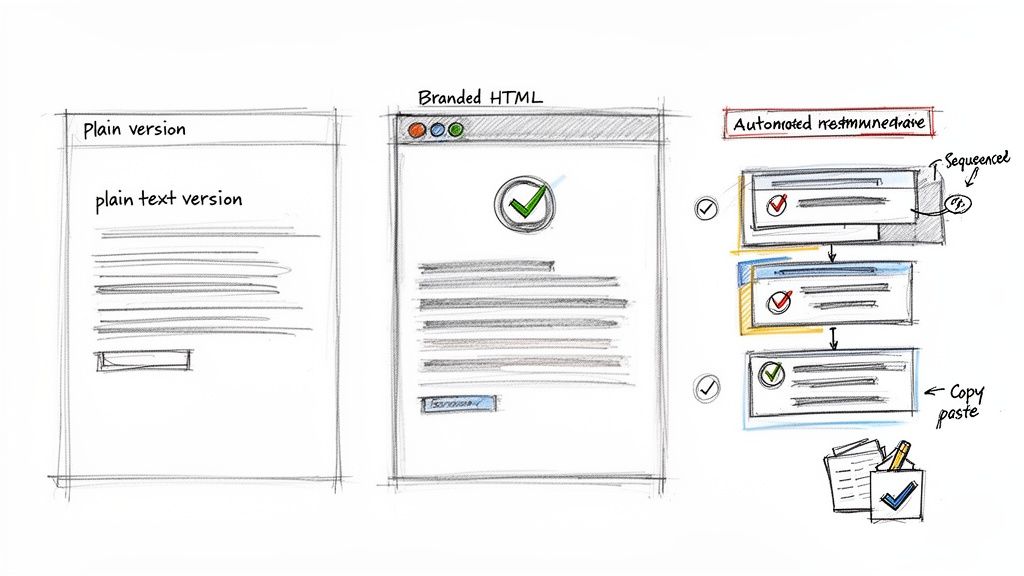
This is your workhorse. It's clean, direct, and gets straight to the point. The minimalist approach is perfect for maximum deliverability because it sidesteps complex formatting that can sometimes land you in a spam folder. It just works.
Subject: Appointment Confirmed with [Your Business Name] on [Date]
Hi [Client Name],
This email confirms your upcoming appointment with us. We have you scheduled for a [Service Name] with [Provider Name].
Here are the details:
- Date: [Date]
- Time: [Time] ([Time Zone])
- Location: [Full Address or Video Call Link]
Please add this to your calendar to make sure you don't miss it: [Add to Google Calendar Link] | [Add to Outlook/iCal Link]
If you need to make any changes, you can manage your booking here: [Reschedule/Cancel Link]. Please note our [Cancellation Policy Link].
We look forward to seeing you!
Best regards, The Team at [Your Business Name] [Your Phone Number]
The Branded HTML Template
When you want to deliver a more polished, on-brand experience, an HTML email is the way to go. This style is fantastic for reinforcing your brand's identity and making key actions—like adding the event to a calendar—pop with buttons and your brand colors. Just picture your logo right at the top.
Subject: ✨ Your [Service Name] Appointment is Confirmed!
Hi [Client Name],
Great news! Your booking with [Your Business Name] is officially on the calendar. We're excited to see you for your [Service Name] with [Provider Name].
Appointment Details
- When: [Date] at [Time] ([Time Zone])
- Where: [Full Address or Video Call Link]
- What: [Service Name]
[Add to My Calendar] (This would be a prominent, clickable button linking to calendar options.)
Need to make a change? You can easily reschedule or cancel up to 24 hours before your appointment.
[Manage My Booking] (This button would link directly to their client portal or booking page.)
If you have any questions, feel free to reply to this email or call us at [Phone Number].
See you soon, The [Your Business Name] Team
Key Insight: The main job of any confirm appointment email is to remove friction. By giving the client one-click links for calendar events and rescheduling, you’re making their life easier. This simple step dramatically cuts down on no-shows that happen purely out of inconvenience.
The Automated Reminder Template (24 Hours Before)
Think of this one as your final, friendly nudge. It's much shorter and more direct, laser-focused on reinforcing the essential details just before showtime. This email is a non-negotiable part of a complete communication sequence.
Subject: Reminder: Your appointment with [Your Business Name] is tomorrow!
Hello [Client Name],
This is a friendly reminder that your [Service Name] appointment with [Provider Name] is scheduled for tomorrow.
- When: [Date] at [Time] ([Time Zone])
- Location: [Address or Video Call Link]
If you have any last-minute questions, please call us at [Phone Number].
We're looking forward to seeing you!
Sincerely, [Your Business Name]
These templates should give you a fantastic starting point. Don't forget to inject your own brand's personality and adjust them to fit what your clients need. For businesses ready to implement this kind of hands-off automation, check out our guide to Booking-ready websites for service pros.
Nailing the Timing of Your Appointment Communications
Sending a single confirmation email is good, but it's the full sequence—the strategic follow-up—that really makes a difference in cutting down no-shows. Think of it less as pestering someone and more as a series of helpful nudges that guide them right to your door, on time and ready to go.
This isn’t about just blasting out messages. It’s a carefully planned cadence that works with how people organize their lives, making your appointment a priority instead of a distant thought.
The Instant Confirmation: Lock It In
This is the most important email you'll send. The moment a client clicks "book," they need a confirmation to land in their inbox. It’s a huge psychological win. It tells them, "Success! We've got you," which immediately erases any doubt and validates their choice to book with you.
This first email has to be packed with all the crucial details. But most importantly, it needs a clear "add to calendar" link. The second your appointment is on their personal calendar, the chance of them showing up skyrockets.
The 24-48 Hour Reminder: A Gentle Nudge
We all get swamped. An appointment booked weeks ago can easily slip through the cracks. Sending a reminder 24 to 48 hours ahead of time is the sweet spot. It pulls the appointment back into focus and gives them a fair window to reschedule if something has come up, which also helps you enforce your cancellation policy without friction.
Keep this one short and sweet. Just restate the key info—date, time, location—and make it super easy for them to get in touch with any last-minute questions. For a deeper dive into what makes these messages click, check out our guide on how to send a reminder email effectively.
A little trick I've learned: For bigger-ticket appointments or first-time clients, a quick, personal phone call the day before works wonders. It's a small touch that shows you genuinely care and can be incredibly powerful for preventing a costly no-show.
The Day-Of Alert: The Final Check-In
A final heads-up a few hours before the appointment is your last chance to prevent a missed slot. This is where you can get clever and use more than just email. While email is great for details, nothing beats a text for a last-minute poke.
Why a text message? SMS has a massive open rate—over 98%—and people usually read them within minutes. A quick message like, "Hi [Name], just a friendly reminder about your 2 PM appointment with us today!" is often all you need. It's not spam; it’s a genuinely helpful service that your busy clients will be thankful for.
How to Automate Your Confirmation Workflow
Sending confirmations manually is a good start, but putting that whole workflow on autopilot is how you really get your time back. Automation isn't just for big companies anymore. Tools like Kejoola make it easy for any service provider to build a hands-off system that works around the clock to keep your schedule full.
The goal here is to stop actively managing every single appointment and instead just oversee a process that runs itself. This shift frees you from the nitty-gritty admin work so you can focus on what you actually do best.
Building Your Automated Sequence
A solid workflow is all about anticipating what your client needs to know and when they need to know it. In a system like Kejoola, this all starts with creating a few email templates you can use over and over.
The real magic is using dynamic fields (you might also see them called merge tags). Instead of typing a client's name or appointment time into every email, you just pop in a placeholder like [Client Name] or [Appointment Time]. The system automatically swaps in the right details for each person.
This simple step ensures every confirm appointment email feels personal and is perfectly accurate, all without you having to lift a finger after the initial setup.
The flow diagram below lays out a classic communication cadence, from the moment someone books all the way to their final reminder.
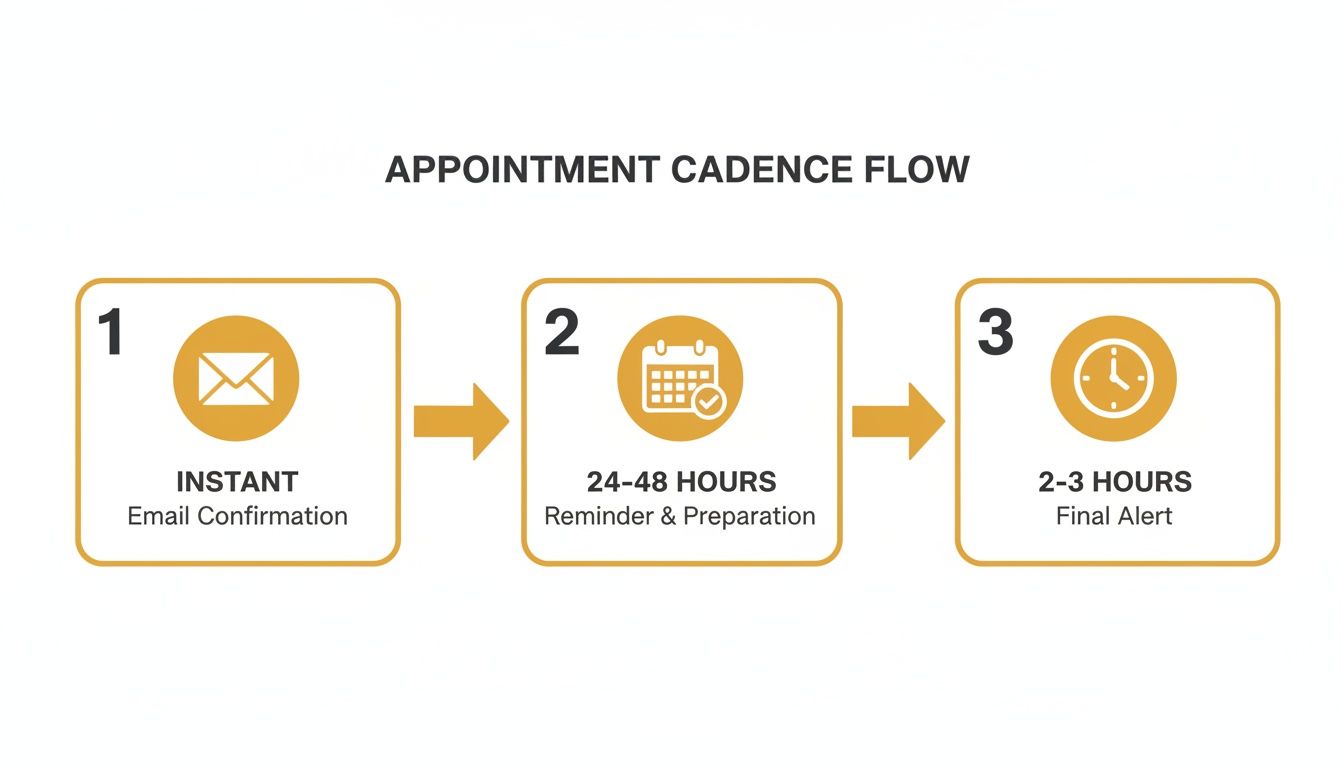
This visual shows the key touchpoints that keep your clients in the loop and accountable: an instant confirmation, a reminder a day or two out, and a final nudge on the day of the appointment.
Setting the Triggers and Timing
With your templates ready, the next step is to tell the system when to send them. This is the "set it and forget it" part. You're basically creating simple "if this, then that" rules based on timing.
- Trigger 1: New Booking
- Action: Send the "Initial Confirmation" email right away. This gives the client immediate reassurance that their booking is locked in.
- Trigger 2: 48 Hours Before Appointment
- Action: Send the "24-48 Hour Reminder" email. This is the sweet spot—it gives someone enough time to reschedule if a conflict has come up.
- Trigger 3: 2 Hours Before Appointment
- Action: Send a final, quick reminder. An email or SMS at this point is great for catching those last-minute memory slips.
Don't underestimate the power of automation. According to Snov.io, automated campaigns have shown an incredible 2,361% higher conversion rate than manual sends. When you consider that email marketing can deliver an ROI of up to $50 per dollar spent, the case for automation is pretty clear.
Pro Tip: Make it a habit to include a direct link to a client portal in your automated emails. This gives clients a central place to see their appointment history, add notes, or manage their booking on their own time, which means fewer calls and emails for you.
This kind of streamlined process doesn't just save you hours of work; it makes your business look polished and professional. If you're still weighing your options, our guide on the best appointment scheduling software can help point you in the right direction. By building an automated workflow, you create a reliable system that protects your schedule and gives clients a better experience from the moment they click "book."
Answering Common Questions About Appointment Emails
Even with the best templates and automation tools, some practical questions always pop up. Let's dig into a few common "what if" scenarios I see all the time. Getting these little details right can make a huge difference in your client's experience.
What If a Client Says They Never Got the Email?
This one comes up a lot, but don't panic. It's usually a simple fix.
First things first, double-check the email address you have on file. A simple typo like ".con" instead of ".com" is a surprisingly common culprit. Just a quick glance can often solve the mystery.
If the email address is correct, the next stop is their spam or promotions folder. It happens. Even the most legitimate emails can get filtered by aggressive spam blockers. A good preventative measure is to add a small note on your booking page: "Please check your spam folder for our confirmation!"
If you're getting this complaint from multiple clients, it might be a sign that your email provider is being flagged. This is rare if you're using a solid platform, but it’s worth looking into if the problem keeps happening.
Should I Let Clients Reply to These Emails?
Yes, absolutely. A "no-reply" email address is a dead end. It feels cold and creates a barrier right when you want to be building trust.
Allowing replies shows your clients that a real person is on the other side and that you're available to help. You don't have to encourage a long back-and-forth, but keeping the line of communication open for a quick question is a simple customer service win.
Just be sure that someone—you or a team member—is actually monitoring that inbox. An unanswered question is worse than no reply at all.
How Much Information Is Too Much?
Your confirm appointment email should be all about clarity, not clutter. The mission is to get your client to the right place at the right time, fully prepared.
Stick to the absolute essentials: what service they booked, the exact date and time (don't forget the time zone!), your location, and clear links to reschedule or cancel. Everything else is probably noise.
Avoid the temptation to stuff the email with marketing promotions, your life story, or other unrelated details. A small, relevant upsell can work—think offering a deep conditioning treatment to someone who booked a haircut—but the main focus has to be the appointment itself.
Here’s a good rule of thumb I use: Ask yourself, "Does this piece of information help my client show up prepared and on time?" If the answer is no, it doesn't belong here.
Save the extra resources, detailed prep guides, or marketing messages for a separate welcome series or a follow-up email. This keeps your confirmation clean, scannable, and effective.
Ready to stop juggling manual bookings and start impressing clients from the moment they book? Kejoola provides Booking-ready websites for service pros.