A Guide to Outlook Scheduling Emails
Learn how to master Outlook scheduling for emails, meetings, and client follow-ups. This guide covers Delay Delivery, Send Later, and advanced strategies for business growth.
Josh · Dec 5, 2025 · 17 min read
- outlook
- email scheduling
- productivity
- email marketing
Why Scheduling Emails in Outlook Is a Productivity Superpower
Let's be honest, email can feel like a reactive game you’re constantly losing. A notification pops up, you stop what you're doing, and your focus is shattered. But what if you could flip the script? Scheduling your emails in Outlook lets you do exactly that. It's less about a nifty feature and more about a strategic shift in how you communicate.
Using tools like Delay Delivery or Send Later means you control when your message lands. You get to write it on your own time and have it arrive at the perfect moment for the recipient.
Go Beyond Inbox Zero and Reclaim Your Workday
For years, we've been told "Inbox Zero" is the goal. But that’s just about clearing out what’s come in. True email mastery is about being intentional with what goes out. This is where scheduling becomes your secret weapon. It’s a simple change that gives you back control over your time and, frankly, your sanity.
Think about it. Instead of breaking your concentration on a big project to fire off a quick update, you can write it while it’s fresh in your mind, schedule it, and get right back to what matters. This is a classic productivity technique called "batching." You handle all your email correspondence in one or two dedicated blocks, freeing up huge chunks of your day for uninterrupted, deep work.
Maximise Your Communication Impact
We all know timing is crucial. An important proposal sent at 10 PM on a Friday is likely to be buried by Monday morning. But if you schedule that same email to arrive at 8:45 AM on Monday, it’s one of the first things your client will see. It's a small change with a massive impact.
Here are a few situations where I've found this to be a game-changer:
- Working with international teams: I can write an email to my colleague in London at the end of my day and schedule it to arrive at 9 AM their time. They get it first thing, not in the middle of the night.
- Synchronising team announcements: When a critical project update needs to go out, I schedule it for a specific time so everyone on the team gets the news simultaneously. No more confusion.
- Impressing clients: Right after a sales call, I’ll draft a follow-up summary and schedule it for an hour later. It shows I'm on top of things without me having to manually hit send.
This isn't just a hunch; the data backs it up. In a digitally-savvy country like the Philippines, for instance, a staggering 94.2% of the population uses email every month. When inboxes are that crowded, your timing can make the difference between being read and being ignored.
A Practical Tool for Modern Professionals
Once you start scheduling, you stop carrying the mental load of "I need to remember to send that email." You write it, schedule it, and forget it. That mental space is freed up for more important tasks.
For any business that runs on appointments—consultants, clinics, service providers—this isn't just helpful; it's essential.
This is what it looks like in practice: your communication becomes a planned part of your workflow, not a constant interruption. For more practical advice on boosting your business's efficiency, you can find a lot more on our blog.
Alright, let's move from the 'why' to the 'how'. Getting a handle on scheduling emails in Outlook is where you start to really take back control of your day. The actual steps are a bit different depending on whether you're using the desktop program or the web version, but the goal is the same: write it now, and let it land in their inbox at just the right time.
The main thing to get straight is the terminology. On the classic desktop app, you'll be looking for a feature called "Delay Delivery". If you're using Outlook on the Web or the mobile apps, it’s called "Send Later". It seems like a small difference, but it points to a critical distinction in how they work behind the scenes, which we’ll get into.
Scheduling with Delay Delivery in the Desktop App
When you're at your main workstation, either on a Windows PC or a Mac, the Delay Delivery option is your tool of choice. This is brilliant for those moments when you've polished off a weekly report on a Friday afternoon but want it to be the first thing your manager sees on Monday morning.
Here’s how you get it done:
- First, just write your email like you always do—fill in the recipient, subject, and your message.
- With the message window still open, head up to the Options tab in the top ribbon.
- Look for the Delay Delivery button within the More Options group and give it a click. This will pop up a 'Properties' dialogue box.
- In the Delivery options section, you'll see a checkbox labelled "Do not deliver before." Tick that box.
- Now, simply choose the date and time you want the email to actually be sent.
- Click Close, and then hit the main Send button on your email.
It won't fire off right away. Instead, your message will sit patiently in your Outbox folder until the scheduled time arrives. Here's the catch, and it's a big one: for Delay Delivery to work, your Outlook application has to be open and connected to the internet at the scheduled time. If your computer is off or asleep, that email isn't going anywhere.
A Pro Tip from Experience: I constantly use this to batch-process client follow-ups. After a busy day of meetings, I’ll write out personalised summaries for each and schedule them to send exactly 48 hours later. This keeps my communication timely without derailing my focus on the next big task.
Using Send Later in Outlook on the Web and Mobile
For those of us who live in a web browser (Outlook.com) or rely on the mobile app, the process is smoother with the "Send Later" function. This method is, frankly, more convenient for most situations because it's entirely server-based. You set the time, and you can shut your laptop, turn off your phone, and walk away—Microsoft’s servers handle the rest.
The steps are just as simple:
- On the Web: Once you've written your email, don't just click the big "Send" button. Instead, click the little dropdown arrow right next to it. You’ll see an option for Send later. Select it, and a calendar will appear, letting you pick the perfect moment for delivery.
- On Mobile: It's a very similar flow. Draft your message, then tap the three-dot menu (...) or look for a scheduling icon near the send button. From there, choose Schedule Send and pick your date and time.
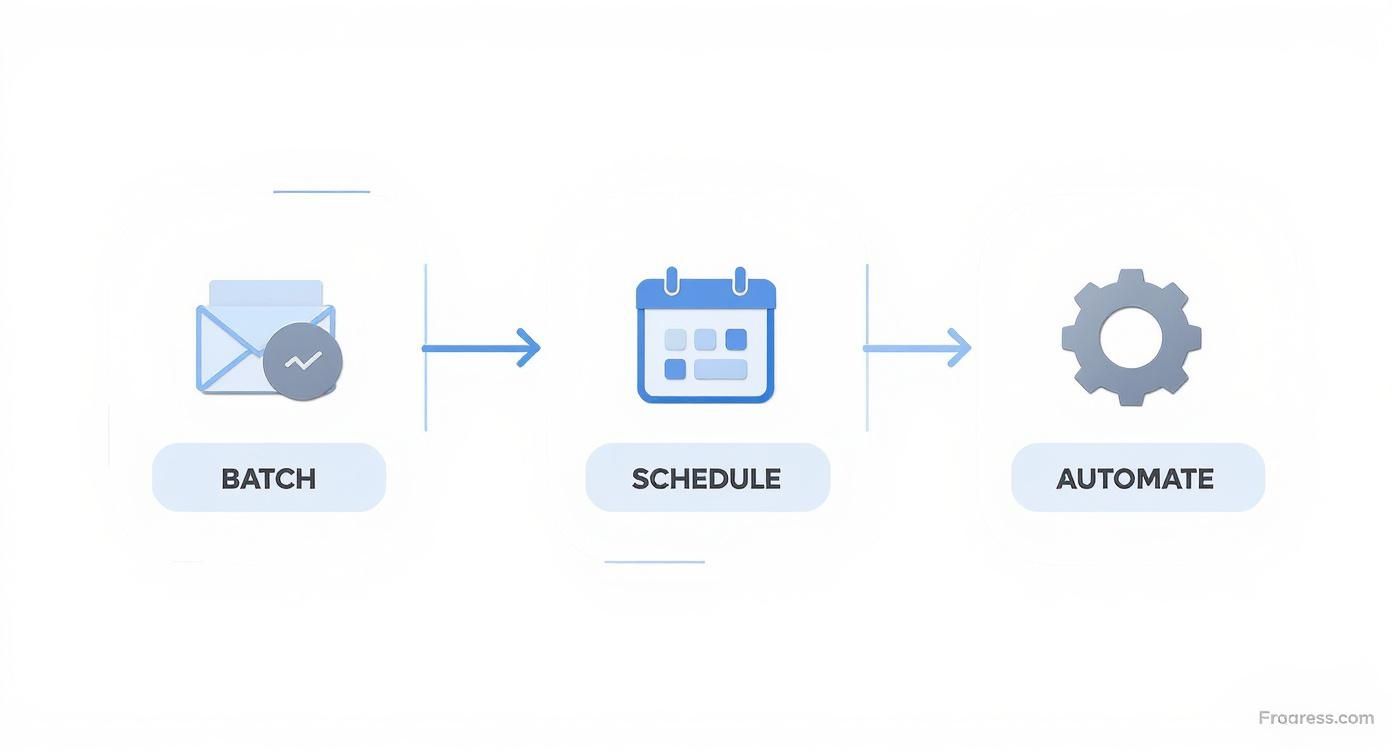
This is all part of creating a more efficient system for yourself. By batching your email writing and then scheduling the delivery, you create a powerful productivity loop that saves a ton of mental energy.
As you can see, grouping similar tasks (batching), setting them to run at a future time (scheduling), and letting the system handle it (automation) is a simple but incredibly effective way to work.
Outlook Scheduling Features Across Platforms
To make it crystal clear, the feature you use really depends on where you're using Outlook. Each version has its own name and quirks for scheduling sends.
Here's a quick breakdown:
| Platform | Feature Name | Primary Use Case | Key Limitation |
|---|---|---|---|
| Outlook Desktop (Windows/Mac) | Delay Delivery | Scheduling messages when you know your PC will be on and running Outlook. | The application must be open at the scheduled send time. |
| Outlook on the Web | Send Later | The most flexible option; schedule from any browser and forget it. | Requires an active internet connection only at the time of scheduling. |
| Outlook Mobile App (iOS/Android) | Schedule Send | Perfect for scheduling on the go right after a meeting or call. | The feature might be located in slightly different menus depending on the OS. |
| New Outlook for Windows | Schedule send | A unified, server-based approach, combining the best of web and desktop. | Still rolling out to all users, so availability can vary. |
This table shows that while the goal is the same, the path to get there—and the reliability of the send—can differ. For maximum flexibility and fire-and-forget confidence, the "Send Later" or "Schedule send" options on web, mobile, and the New Outlook are generally the superior choice.
Using Scheduling to Master Meetings and Appointments
Sending an outlook scheduling email is about so much more than just hitting "send later." The real magic happens when you use its deep integration with the calendar to completely overhaul how you manage meetings and client appointments. It’s the key to ending that endless, frustrating email chain just to find one slot that works for everyone.
The heart of this system is the Scheduling Assistant. Think of it as your secret weapon for finding the perfect meeting time. It lays out a visual grid of everyone's free and busy times, so you can instantly see where the open slots are. Just pop in your attendees, and Outlook does the heavy lifting, showing you shared availability without any of the usual guesswork.
Streamline Recurring Events
Got a weekly team huddle or a monthly client review? Manually creating those invites every single time is a huge time-waster. This is exactly what Outlook’s recurring appointment feature was built for. When you set up a meeting, you can tell it to repeat on a specific schedule.
- Daily: Perfect for those quick morning stand-up meetings.
- Weekly: A classic for project syncs and team catch-ups.
- Monthly: Great for board meetings or performance reviews.
- Annually: Ideal for yearly planning sessions or contract renewals.
By setting up a recurring event, you send one invitation that blocks out the time on everyone's calendar for the entire series. If anything changes, you can update a single meeting or the whole series at once, keeping everyone in sync with minimal fuss.
Manage Time Zones with Confidence
Working with teams or clients across the globe adds a layer of complexity: time zones. The Scheduling Assistant is a lifesaver here, as it automatically displays each person's schedule in their own local time. This simple feature prevents those embarrassing mix-ups, like accidentally booking a meeting for a colleague in the middle of their night.
When you send an invite, Outlook automatically shows the time in the recipient's configured time zone. It's a small detail that makes a massive difference, ensuring clarity and professionalism when you're working across different regions.
Automate Confirmations and Reminders for Service Businesses
For any service business, from consultants to clinics, no-shows are a direct hit to your bottom line. You can use Outlook to build a simple but incredibly effective system for sending appointment confirmations and reminders, which can dramatically cut down on missed appointments. This kind of professional workflow is a game-changer for businesses trying to get fully booked online, especially in the PH business scene where solid digital communication is everything.
Here’s a practical workflow you can start using today:
- Confirm Immediately: The moment a client books with you, create a calendar invitation in Outlook and send it over. This gets the appointment on their calendar right away, making it official.
- Schedule the Reminder: Now, use the "Delay Delivery" or "Send Later" feature to schedule a reminder email to go out 24-48 hours before the appointment.
- Template Your Messages: Don't write reminders from scratch every time. Create a standard template with all the key details: date, time, location (or video call link), and any prep instructions. This keeps your communication consistent and saves you a ton of time.
This automated process does more than just boost your attendance rates. It creates a seamless client experience by providing helpful, timely information. It shows you're an organised, professional operation, which builds trust right from that very first interaction. By using these calendar-focused features, you’re no longer just sending emails—you're strategically managing your time and your client relationships.
Advanced Scheduling Strategies for Business Growth
https://www.youtube.com/embed/5M2Kq_5V24A
Let's move beyond the basics. Yes, scheduling emails in Outlook is a neat trick for personal productivity, but its real power lies in turning it into a strategic tool for growth. This is where we stop seeing it as just a "delay send" button and start using it as a fundamental part of our sales, marketing, and client relationship engine. It’s all about being strategic, timely, and personal, but at scale.
For anyone in sales, this is a game-changer. You can build simple but incredibly effective follow-up sequences right inside Outlook, without needing complex CRM software. Say you meet a great prospect at a networking event. Instead of just one follow-up that gets lost in the noise, you can queue up a series of three timed emails to drip out over the next two weeks. This keeps you top-of-mind and builds momentum, showing you're both organised and persistent—all without you having to manually track it.
Deploying Timed Marketing Campaigns
You don't always need a pricey email marketing platform to run smart, targeted campaigns. By simply understanding your audience's daily and weekly routines, you can use Outlook’s scheduling to land promotional emails at moments of peak engagement.
A local spa, for example, could schedule a "Mid-Week De-stress" offer to arrive in inboxes on a Tuesday morning, precisely when people are feeling the week's pressure and starting to plan their downtime.
This tactic is especially powerful in digitally connected markets. Consider the email advertising sector in the Philippines, which is on track to hit USD 34.15 million by 2025. With a huge portion of Filipinos checking email on their phones, timing your messages for optimal mobile viewing—like during the morning or evening commute—gives you a serious tactical edge. You can dig deeper into these trends in the Philippine digital ecosystem.
This is a perfect example of scheduling becoming a core part of your digital strategy. This approach pairs beautifully with a streamlined booking process. You can learn more about how to set one up in our article on the benefits of a tab booking system.
Scheduling as a Client Relationship Tool
When you get right down to it, advanced scheduling is really about forging stronger connections with your clients. Consistently delivering timed, personalised communication shows you're thoughtful and reliable, which are the cornerstones of trust.
Think of it this way: a scheduled "happy birthday" email to a long-term client or a quick six-month check-in after a project wraps up is a small gesture that delivers a huge impact. It proves you value the relationship far beyond the initial transaction.
Here are a few practical ideas you can implement immediately:
- Post-Purchase Follow-Up: Schedule an email to go out a week after a client's purchase. You can ask for feedback, offer some tips for getting the most out of their new product or service, or just check in.
- Onboarding Sequence: When a new client signs on, create a short series of scheduled emails. The first can welcome them, the next can set expectations, and a third can share helpful resources.
- Re-engagement Campaigns: Every quarter, run a report of clients you haven't heard from in a while. Schedule a friendly, no-pressure check-in email to see how they're doing and restart the conversation.
By weaving these strategies into your daily workflow, Outlook scheduling emails transforms from a passive feature into an active, powerful tool for driving conversions and building lasting client loyalty.
Troubleshooting Common Outlook Scheduling Problems
Even with the best intentions, scheduling an email in Outlook can sometimes go sideways. We’ve all been there: you check in, expecting a crucial message to have been delivered, only to find it sitting right where you left it. It's frustrating, but the fix is usually straightforward once you know where to look.
Let's get right into the most common question I hear: "Why didn't my scheduled email send?" The answer nearly always boils down to a fundamental difference in how Outlook works, depending on whether you're using the desktop app or the web version. Getting this one distinction right is key.
The Desktop App Versus The Web Version
Most sending failures happen because "Delay Delivery" and "Send Later" aren't just two names for the same thing. They operate on completely different principles.
-
Delay Delivery (Desktop App): Think of this as a local instruction. It tells your Outlook application to hold onto an email. For the message to actually go out, your computer must be on, with the Outlook program running and connected to the internet. If you schedule an email for 7 AM but your laptop is shut down, that message isn't leaving until you're back online and Outlook is open.
-
Send Later (Web & Mobile): This, on the other hand, is a server-side command. When you use Outlook on the web or your mobile, the scheduling instruction goes directly to Microsoft's servers. This is the 'set-it-and-forget-it' option. You can shut your computer down, close the app, and that email will still be sent right on time. For reliability, this is the method to use.
Finding, Editing, or Cancelling a Scheduled Email
So, you've scheduled a message and now you need to make a change or stop it completely. Where do you find it? This trip-up is common, and the answer depends entirely on which of the two methods you used.
Forgetting where a scheduled message lives can cause a real moment of panic. Just remembering these two locations—Outbox for desktop and Drafts for web—will save you a lot of stress and help you catch any mistakes before they're sent.
If you used Delay Delivery in the desktop app, your pending email is waiting patiently in your Outbox folder. Head there, open the message, and you can edit it as needed. Clicking "Send" again will update the scheduled time, or you can just delete it to cancel the send.
If you used the more reliable Send Later feature on the web or mobile app, your email is sitting in the Drafts folder. It will have a clear note on it indicating when it's scheduled to go out. From there, you can open it to make your edits and save, or simply delete the draft to prevent it from ever being sent.
When Scheduling Options Disappear
Every now and then, a feature like "Delay Delivery" or "Send Later" can seem to vanish into thin air, especially after an update or if a setting gets toggled by accident.
If you can't find the option, the first step is always to make sure your Outlook is fully updated. If that doesn't solve it, take a look at your add-ins. Sometimes a third-party extension can conflict with Outlook's built-in features. For those really stubborn glitches, running a quick repair on your Office installation from the Control Panel usually brings everything back to normal.
Answering Your Top Questions on Scheduling Emails
Even after you get the hang of it, a few practical questions always pop up when you start weaving Outlook's scheduling features into your daily workflow. Let's tackle some of the most common ones I hear, so you can get quick answers and get back to your day.
Can I Schedule Recurring Emails in Outlook?
This is a big one. Natively, Outlook’s Delay Delivery and Send Later features are designed for one-off sends, not for recurring messages. But don't worry, there's a clever workaround.
The easiest way to pull this off is by creating a recurring appointment or meeting in your own Outlook calendar. Set it to repeat as needed and then use the event's built-in reminder system to trigger the communication or action you need.
For anyone needing something more robust and automated, you could dive into Microsoft Power Automate. It can be set up to send emails on a fixed schedule, but frankly, for most everyday business needs, the recurring appointment trick works perfectly and is much simpler to set up.
Does My Computer Need to Be On for the Email to Send?
This is a critical detail that catches a lot of people out. The answer hinges entirely on which version of Outlook you're using.
- If you're using Delay Delivery in the desktop Outlook app, then yes, your computer absolutely must be on and Outlook needs to be running. If you close the program or shut down your PC, the email will just sit there and will only be sent the next time you open Outlook.
- On the other hand, if you're using Send Later in Outlook on the web (Outlook.com) or the mobile app, the email gets saved on Microsoft's servers. It'll send at the scheduled time no matter what your computer is doing—on, off, or halfway across the world.
My advice? For true "set it and forget it" peace of mind, always use the 'Send Later' feature on the web or mobile app. It takes your local machine out of the equation and guarantees your message goes out on time.
How Can I See All My Scheduled Emails?
Finding your pending emails is easy once you know where to look. In the desktop version of Outlook, any message you've scheduled with Delay Delivery will patiently wait in your Outbox folder until it's time to go. You can pop in there anytime to check on it, make edits, or delete it.
If you're using Outlook on the web, emails scheduled with Send Later are kept in your Drafts folder. You'll see a clear note on the message indicating its scheduled delivery time, making it simple to manage before it's sent.
What Happens if I Schedule an Email with an Attachment?
No sweat here—scheduling an email with an attachment works just as you'd expect. The file gets attached and saved with the draft. When the clock strikes the scheduled time, the entire email, attachment and all, gets delivered to your recipient.
The only small thing to watch out for, especially with a spotty internet connection, is to make sure the file has finished uploading before you close the email window. Otherwise, it's business as usual.
Ready to stop juggling DMs and spreadsheets and get a professional, booking-ready website? Kejoola builds you an AI-powered site in minutes, complete with smart scheduling, automated confirmations, and a secure client portal. Start your free 14-day trial and see how easy it is to grow your service business at https://kejoola.com.