How to Sync Google Calendar with iPhone A Simple Guide
A simple guide on how to sync your Google Calendar with an iPhone, using either the native iOS Calendar app or the official Google Calendar app for a unified view of your schedule.
Josh · Dec 7, 2025 · 15 min read
- Google Calendar
- iPhone
- sync
- productivity
Getting your Google Calendar and iPhone to work together is actually quite simple. The most direct route is to head into Settings > Calendar > Accounts > Add Account, pick Google, and sign in. Just make sure the 'Calendars' option is toggled on, and all your events will start flowing right into Apple's native Calendar app.
That simple step creates a single, unified view of your entire schedule, right on your device.
Why a Unified Calendar Is Essential
Let’s be honest, keeping your digital life organised really comes down to having everything in one place. If you're an iPhone user but rely on Google Calendar for work, personal life, or both, getting them to sync isn't just a nice-to-have feature—it’s absolutely critical.
Without a reliable sync, you're practically inviting chaos. You risk double-bookings, forgotten appointments, and last-minute scrambles, all of which can throw your entire day off track. Knowing how to properly manage your schedule is the best way to avoid the stress of a potential schedule conflict.
This guide will walk you through the practical steps to build that single, dependable calendar system on your iPhone, ensuring you never miss a beat.
The Importance of Cross-Platform Syncing
We all jump between devices—a laptop at the desk, a phone on the go. In that kind of environment, a calendar that updates in real-time across every device isn't a luxury; it's a necessity.
Syncing Google Calendar to your iPhone means an event you add on your computer shows up instantly on your phone, and vice-versa. This is especially true here in the Philippines, where a dynamic and digitally-savvy population depends on these kinds of integrations to manage their busy lives.
For many, syncing cloud-based calendars has become a daily utility. It's a cornerstone of productivity and time management, particularly for a population with high digital engagement and a median age of just 24.3 years.
With over 73% of the population owning smartphones as of 2023, the demand for reliable cross-platform tools has never been higher. Connecting a Google account to an iPhone's native calendar is a routine task for countless Filipino students and professionals who live inside Google’s ecosystem for collaboration. As the country's internet user base pushed past 80 million in 2024, our reliance on a smooth connection between Google and iOS has only grown stronger.
If you're a visual learner, you can watch this tutorial for a quick overview to see the setup in action. Otherwise, let's dive into the most effective ways to get it done, whether you want to stick with Apple's clean interface or use Google's own app.
Using the Built-In iOS Calendar App
The most straightforward way to get your Google Calendar on your iPhone is to add it directly to the native Calendar app. This is the app that comes pre-installed on every iPhone. I find this is the best route for people who love a clean interface and want everything to feel seamlessly integrated with the rest of iOS. It creates one unified view, merging your personal iCloud events with your professional Google appointments.
The big win here is that you don't need to download another app. Everything just works. Your Google Calendar events will show up right alongside your other calendars, and you can take advantage of iOS features like home screen widgets and Siri commands. A simple "Hey Siri, add a meeting for 2 PM" can drop an event right into your Google Calendar if you've set it as your default. It’s a really efficient workflow if you're already comfortable in Apple's ecosystem.
Choosing between the native app and Google's own dedicated app really boils down to how you like to work. This decision tree can help you figure out which path is a better fit for your needs.
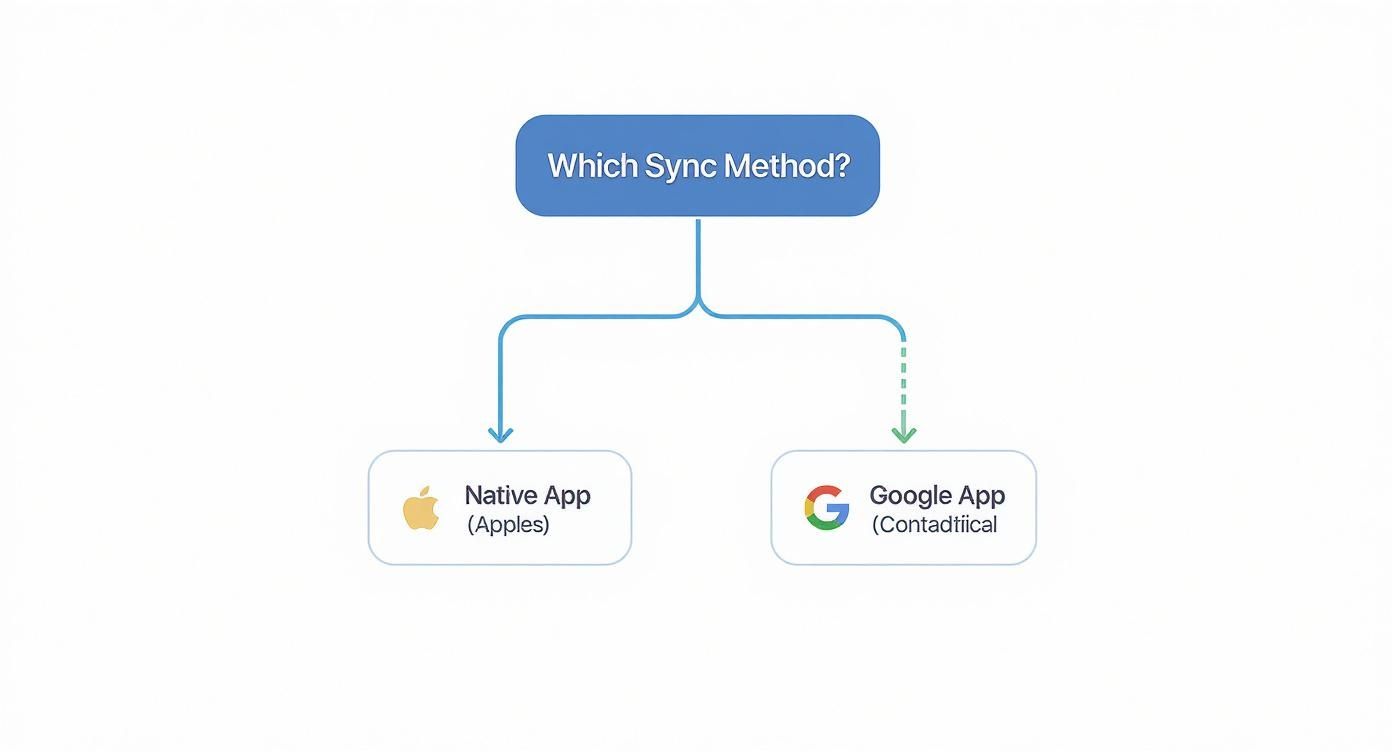
Essentially, the native app offers a simple, unified experience, whereas the dedicated Google Calendar app provides a deeper connection to other Google services like Gmail and Tasks.
Adding Your Google Account
Getting your account connected is a quick, one-time setup that creates a lasting link between your Google Calendar and your iPhone. It only takes a minute.
Here’s how to do it:
- First, open the Settings app on your iPhone.
- Scroll down and tap on Calendar.
- From there, select Accounts, and then tap Add Account.
- You'll see a list of providers. Tap on Google and sign in with your email and password.
Once you've successfully logged in, your iPhone will ask what you want to sync—Mail, Contacts, Calendars, and sometimes Notes. The important one here is Calendars. Make sure that toggle is switched on (it should turn green). This gives your iPhone permission to pull in and display all your Google Calendar events.
Customising Which Calendars You See
After your account is linked, you have complete control over which calendars actually appear in the app. This is a lifesaver. Most of us have multiple Google Calendars for different parts of our lives—one for work projects, another for personal appointments, and maybe a shared family schedule. You definitely don't need to see all of them all the time.
To fine-tune your view, just open the Calendar app and tap the Calendars button at the bottom of the screen. You'll see a list of all your accounts and the individual calendars under each one. Simply tick or untick the calendars you want to show or hide.
Expert Tip: This granular control is key to keeping your schedule organised and not overwhelming. For instance, I always hide my project-specific work calendars when I go on holiday. On weekends, I might only show my family calendar to keep work out of sight and out of mind.
This native integration works brilliantly for most users, providing a streamlined and effective solution. The ability to manage different accounts and calendars within one interface is a core principle of modern productivity. We explore similar efficiency gains in our guide on Outlook scheduling best practices, which offers more insights into managing professional schedules. The goal is always to make your calendar a helpful tool, not another source of digital noise.
Using the Official Google Calendar App
While Apple’s native Calendar app does a great job of pulling everything into one clean, unified view, sometimes you just need the real thing. For anyone deeply invested in Google’s world, the official Google Calendar app is often the better choice. It offers an experience and feature set that’s pure Google, creating a seamless link between your calendar and other tools you probably use daily, like Gmail and Google Meet.
Choosing the official app means you’re getting features designed specifically for the Google Calendar platform. It’s not just about seeing your appointments; it’s about tapping into the full strength of Google's scheduling tools right from your iPhone.
The setup couldn't be simpler, either. All you have to do is download the app from the App Store and sign in with your Google account. That's it. Your calendars and events will populate automatically, with no need to fiddle around in your iPhone's settings.
Accessing Google-Specific Features
One of the biggest draws of the official app is getting access to features that simply aren't available when you sync through the native iOS Calendar. These tools are built to thrive within Google's ecosystem and can make a genuine difference in your productivity.
Here are a few of the exclusives you'll get:
- Google Meet Integration: Create an event, and the app can instantly add a Google Meet link. No more fumbling around to set up virtual meetings.
- Events from Gmail: The app is smart. It scans your Gmail for flight confirmations, hotel bookings, or event tickets and adds them to your calendar automatically.
- Goals and Reminders: You can set personal goals (think "exercise three times a week"), and Google Calendar will intelligently find open slots in your schedule to help you stick to them.
- Smart Suggestions: As you start typing an event, the app cleverly suggests people you meet with often, places you've been, and even common event titles, which speeds everything up.
By using the official app, you guarantee 100% feature parity with the desktop version of Google Calendar. You'll never be left wondering if a feature is missing or works differently just because you're on your phone.
For power users, this direct access is a game-changer. If you're managing multiple shared calendars or collaborating with a team on Google Workspace, the official app delivers a far more consistent and powerful experience.
Comparing User Experience
Ultimately, deciding between the native iOS app and the official Google Calendar app boils down to your personal workflow. The iOS Calendar is a master of minimalism, creating a single, streamlined view of all your accounts (iCloud, Google, Outlook, you name it). It truly feels like a core part of the iPhone.
The Google Calendar app, on the other hand, offers a richer, more colourful interface that follows Google's own Material Design philosophy. It presents information with more context right in the main view. For service providers who rely on booking platforms like Kejoola, this real-time, feature-rich environment ensures client appointments and booking updates are always reflected accurately, exactly as they appear on a desktop. For them, knowing how to sync Google calendar with iPhone via the official app is crucial for keeping their schedule airtight while on the move.
Subscribing to Public and Shared Calendars
What if you don't need to manage a calendar but just want to keep an eye on it? This is a common scenario, and thankfully, there's a simple solution: subscribing. By using a special link (you'll often see it called an iCal or ICS link), you can add a read-only version of a calendar right into your iPhone's Calendar app.
This is my go-to method for things I need to follow but don’t own. Think about a project timeline for your team, a schedule of community events, or even your university's academic calendar. Subscribing lets you see all the key dates without cluttering up your primary Google account with calendars you can't actually edit.
Finding and Adding a Calendar Subscription
First things first, you need to get your hands on the calendar's subscription URL. This is a web address that almost always ends in .ics. You’ll usually find it tucked away in the sharing settings of the source calendar.
Once you have that link, adding it to your iPhone is a piece of cake.
Just head over to Settings > Calendar > Accounts > Add Account. From there, tap Other, and then select Add Subscribed Calendar. All you have to do is paste the URL into the server field, and your iPhone handles the rest. The new calendar will pop up in your Calendar app, neatly layered with your other schedules.
Here in the Philippines, a perfect real-world use for this is subscribing to the national public holidays calendar. It’s a lifesaver for planning. The government’s official schedule, which includes around 18 annual holidays, is easily accessible via a public ICS feed. I’ve seen so many people add this to their iPhones to automatically block out non-working days for business trips and family vacations. It's incredibly handy for keeping track of important dates like Holy Week and Rizal Day without manual entry. If that sounds useful, you can find more about subscribing to Philippine holiday calendars and get it set up in minutes.
Understanding the Limitations
Subscribing is a fantastic tool, but it's important to understand its boundaries. Since it's a one-way street, you can't edit or add events to a subscribed calendar from your iPhone. Only the calendar's owner can make changes.
The biggest thing to be aware of is potential sync delays. Unlike a fully synced account that uses push updates, subscribed calendars refresh on a schedule set by your iPhone (often every few hours or daily). This means you might not see last-minute changes instantly.
So, this method is ideal for schedules that don't change much, like holiday calendars or academic terms. For a dynamic team calendar where real-time updates are absolutely critical, you'll want to stick with a fully synced shared Google Calendar instead.
This is especially true for service providers. If you're taking bookings, you can't afford any delays. That's why having a robust tab booking system that integrates directly and instantly with your main calendar is non-negotiable. Knowing the difference helps you pick the right tool for the job.
Dealing With Common Syncing Glitches
Even when you've set everything up perfectly, tech can have its off days. If you notice your Google Calendar events aren't showing up on your iPhone, or there's a frustrating delay, don't panic. These hiccups are almost always easy to fix. Usually, the culprit is a minor settings issue or just a temporary communication snag between your phone and Google's servers.
Think of this section as your troubleshooting toolkit. We'll go through the most effective solutions, from a quick manual refresh to double-checking your data settings, to get your schedule running smoothly again.
The Quick Fix: Manually Refresh Your Calendar
The first thing I always try is the simplest: forcing a refresh. It's surprisingly effective.
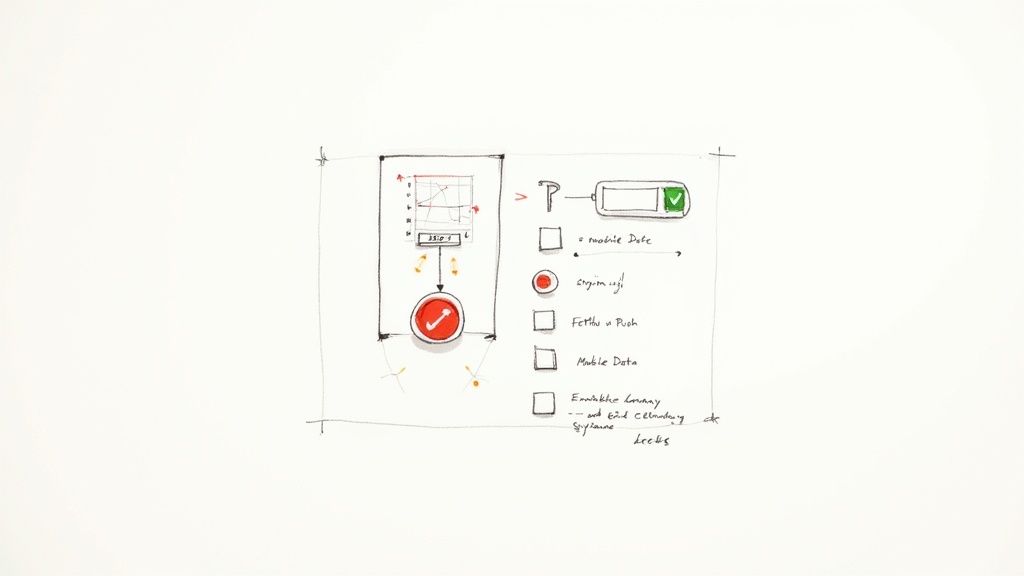
Just open the Calendar app on your iPhone and tap the Calendars button at the very bottom. You’ll see your list of calendars. From there, just pull down from the top of the screen until the little spinning refresh icon appears.
This simple gesture tells the app to ping Google's servers right away and grab any new or changed events. More often than not, this resolves minor sync delays without you having to dive deep into your phone's settings.
Check Your Fetch and Push Settings
If a manual refresh didn't do the trick, the next place to investigate is your sync frequency settings. Your iPhone has two ways of keeping your calendar updated: Push and Fetch.
- Push: This is the gold standard for real-time updates. The moment an event is added or changed in Google Calendar, the update is instantly "pushed" to your iPhone. No delay.
- Fetch: This method checks for updates on a schedule you set—every 15 minutes, 30 minutes, hourly, or even manually.
For anyone who relies on their calendar for time-sensitive appointments, Push is what you want. To see how yours is configured, navigate to Settings > Calendar > Accounts > Fetch New Data. Make sure your Google account is set to Push. If that option isn't available for some reason, select the fastest Fetch schedule, like "Every 15 Minutes," as the next best alternative.
A Quick Tip on Battery Life: While Push gives you instant updates, it does use a bit more battery. If you're trying to squeeze every last drop of power out of your iPhone, setting Fetch to every 30 minutes or hourly is a solid compromise between staying up-to-date and conserving energy.
Are the Right Calendars Even Visible?
Here's a classic scenario: the sync is actually working flawlessly, but the specific calendar you need is hidden. I’ve seen this happen countless times, especially for people juggling multiple calendars for work projects, family events, and personal appointments.
The fix is easy. On your iPhone's browser, go to google.com/calendar/syncselect. You might have to log in to your Google account. Once you're in, you'll see a list of all your calendars. Just make sure the box next to every calendar you want to see is ticked, then hit Save. Pop back over to your Calendar app, and it should update with the correct information.
A Note on Managing Mobile Data
In the Philippines, where many of us are on prepaid or metered mobile data plans, it's smart to be aware of how much data calendar syncing uses. With 63% of Filipino internet users relying on mobile data, every megabyte can matter. A single calendar event sync can use up to 1MB of data, which adds up over time. Some users tweak their settings to sync less frequently or only over Wi-Fi to avoid surprise charges.
This has become less of an issue thanks to affordable data packages from providers like Globe and Smart, but it's still good practice to be mindful of your sync settings, especially when travelling. You can learn more about how other users manage data for calendar syncing in online forums.
Quick Fixes for Common Sync Headaches
Even after setting everything up, you might run into a few quirks. Let's tackle some of the most frequent questions people have when getting their Google Calendar to play nice with their iPhone.
How Do I Make My Google Calendar Sync Instantly?
For real-time updates, the gold standard is enabling Push. This tells your iPhone to listen for new events from Google's servers and update immediately, rather than waiting to ask for them.
You can find this by going to Settings > Calendar > Accounts > Fetch New Data. Tap on your Google account and select ‘Push’.
If you don't see ‘Push’ as an option (sometimes it depends on the account type), the next best thing is setting ‘Fetch’ to the shortest interval available—every 15 minutes. Also, double-check that Background App Refresh is turned on for the Calendar app in your iPhone’s general settings. This allows it to hunt for new information even when it's not open on your screen.
Can I Sync More Than One Google Calendar?
Absolutely. It’s pretty common to juggle multiple calendars—one for work, another for personal life, maybe a shared one for family plans. Once your primary Google account is connected to your iPhone, you get to decide exactly which of its calendars show up.
Just pop open the Calendar app and tap the Calendars button at the bottom. You’ll see a list of every calendar linked to your Google account. Simply tick the ones you want to see and untick the ones you don't.
For even finer control, here's a pro tip: visit google.com/calendar/syncselect from your iPhone’s browser. This little-known page gives you a master list of all your calendars, including shared ones, letting you cherry-pick precisely what gets synced. It's the best way to keep your calendar app from feeling cluttered.
Will Calendars Shared With Me Show Up?
Yes, they will, but you might have to give them a nudge. To keep things clean, an iPhone often defaults to syncing only your main calendar.
If a shared calendar is missing in action, that syncselect page is your best friend. Head over to google.com/calendar/syncselect and log in. You'll see a complete list of every calendar you have access to, including those shared by colleagues or family members.
Check the boxes for the calendars you need, hit 'Save,' and they’ll appear in the iOS Calendar app the next time it refreshes. This is a must for anyone collaborating on team projects or coordinating family activities.
What Is the Difference Between Syncing and Subscribing?
This is a crucial distinction, as the two methods serve completely different functions.
-
Syncing: Think of this as a two-way street. When you sync your Google account, you get full read-and-write access. You can add, edit, or delete events right from your iPhone, and those changes will instantly appear everywhere else—on your laptop, tablet, etc.
-
Subscribing: This is a one-way, view-only feed. You're essentially "following" a calendar, like a public holiday schedule or a team's project timeline. You can see all the events, but you can't change anything from your iPhone.
The rule of thumb is simple: sync the calendars you actively manage, and subscribe to the ones you just need to keep an eye on.
For any service provider, a calendar that’s out of sync is a recipe for disaster. Kejoola’s smart booking system integrates seamlessly with your calendar, ensuring your availability is always up-to-the-minute accurate across every device. You can get a professional, booking-ready website running in minutes and say goodbye to double bookings for good. Start your free trial at Kejoola.com (https://kejoola.com).