How to manage multiple calendars: Simplify scheduling and avoid conflicts
Learn how to manage multiple calendars effectively by choosing a central hub, syncing all your schedules, and using automation to avoid conflicts and save time. A step-by-step guide for service professionals.
Josh · Jan 27, 2026 · 18 min read

- calendar management
- scheduling
- productivity
- automation
- small business
How to Manage Multiple Calendars: A Step-by-Step Guide
The best way how to manage multiple calendars is to pick one calendar to be your central hub, sync everything else to it, and then add an automation tool on top. It’s a simple system, but it works. When every personal, work, and team event flows into one reliable place, you can finally stop worrying about double-booking yourself.
The True Cost of a Fragmented Schedule
If you're juggling separate calendars for your business, personal life, and maybe a team project or two, you know the feeling. It's a constant, low-grade battle of cross-checking and mental gymnastics that's frankly exhausting. But the real damage is much deeper than just daily frustration. For any service professional, a messy schedule is a direct bottleneck to growth, and it comes with some serious hidden costs.
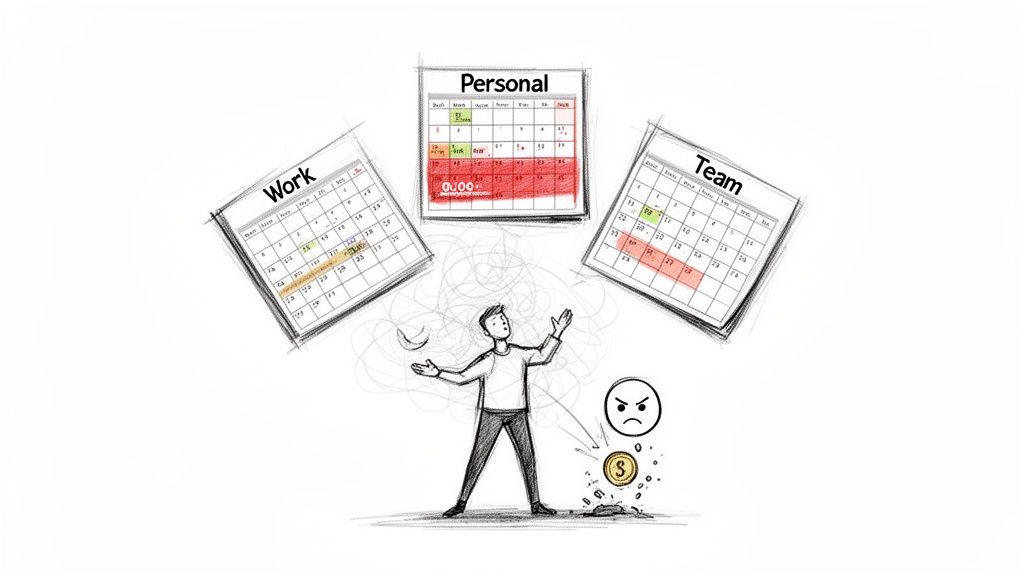
This kind of calendar chaos quietly eats away at your most valuable asset: time. Every hour you spend manually confirming appointments or rescheduling because you missed a conflict is an hour you can’t bill. It all adds up, chipping away at your profitability week after week.
The Impact on Client Trust and Reputation
Imagine you're a freelance designer with a work calendar for client meetings and a personal one for everything else. You lock in a critical project check-in with a major client for Tuesday afternoon, feeling good about it. What you forgot was the dentist appointment sitting quietly over on your personal calendar for the exact same time.
What happens next is predictable: a frantic, last-minute cancellation. The client is frustrated, and your professional reputation takes a serious hit. A single double-booking can instantly unravel the trust you’ve worked so hard to build. From the client's perspective, it just looks like disorganization, making them wonder if you're reliable enough to handle their project.
The mental drain of constantly switching between schedules and worrying about potential overlaps is more than just stressful—it's a productivity killer that directly impacts your bottom line and professional standing.
This isn't some rare, freak accident; it's the inevitable result of a broken system. The first step to fixing this is truly understanding what a schedule conflict means for your business.
From Manual Coordination to Missed Opportunities
The problem goes beyond just direct conflicts. All that inefficiency creates a ripple effect. When you’re constantly bogged down in the administrative muck of manual scheduling, you’re not spending that time on what actually grows your business. You’re not chasing new leads, improving your services, or marketing yourself. You're just stuck managing a calendar.
This reactive approach puts a hard ceiling on your potential. Getting your calendar management right isn't just about being tidy. It's about reclaiming your time, protecting your professional image, and building a foundation that can actually support your business as it grows. It’s time to turn your schedule from a source of stress into a tool that helps you win.
Picking Your Calendar's Command Center
The first real step toward taking back control is to establish a single source of truth for your time. You need to pick one primary calendar to act as your central hub—your "command center"—where all other calendars report. This isn't just about picking your favorite; it's a strategic decision that will serve as the foundation for your entire scheduling system.
For most service professionals, the decision boils down to the big three: Google Calendar, Outlook Calendar, and Apple Calendar. But a generic feature comparison won’t cut it. You need to look at these tools through the lens of a business owner whose time is their inventory.
Start With Your Digital Ecosystem
The best command center is usually the one that’s already at the center of your digital life. Don’t fight your existing workflow; lean into it.
- For the Google-Centric Business: If your business runs on Gmail, Google Drive, and Google Meet, then Google Calendar is the no-brainer. Its deep integration with the G Suite makes it incredibly efficient for creating meeting links and attaching documents directly to events.
- For the Microsoft Power User: If you live in the Microsoft 365 world with a business Outlook email and extensive use of Teams, then Outlook Calendar is your best bet. The seamless continuity within the Microsoft ecosystem is its biggest strength.
- For the Apple Devotee: If you and your clients are all-in on Apple devices—Macs, iPhones, iPads—Apple Calendar offers a beautifully smooth experience. Just be aware that its power diminishes significantly once you step outside that walled garden.
This decision impacts everything that comes next. The goal is to reduce friction, not create more.
Selecting a primary calendar isn't about which app has the most features. It's about choosing the platform that best integrates with the tools you already use every day to communicate with clients and run your business.
Recent industry data highlights just how critical this is. While 64.5% of service businesses now use tools like Microsoft Bookings, a staggering 19.1% are still stuck in "manual hell," texting availability back and forth. This shift is fueling a calendar market projected to grow from $36.4 billion to $61.7 billion by 2033, driven by the need for smarter collaboration. A unified system is no longer a luxury; it's a competitive necessity.
A Deeper Look for Service Professionals
Once you’ve identified your ecosystem, you need to weigh a few factors that are critical for any service provider. As you think about consolidating, a great next step is to learn how to create your perfect time management calendar to support your business goals.
The following table breaks down what truly matters for your day-to-day operations.
Comparing Your Primary Calendar Options
Choosing your calendar hub is a foundational step. Here's a side-by-side look at how the big three stack up on the features that matter most to service-based businesses.
| Feature | Google Calendar | Outlook Calendar | Apple Calendar |
|---|---|---|---|
| Integration Power | Excellent. Connects to nearly every third-party app and scheduling tool available. | Very Good. Strong integration within the Microsoft ecosystem and many business apps. | Limited. Primarily works well with other Apple services and a smaller set of apps. |
| Client Sharing | Flexible. Easy to share "Free/Busy" views or specific calendars with non-Google users. | Good. Solid sharing options, especially effective within corporate environments. | Basic. Best for sharing between Apple users; can be clunky with other platforms. |
| Mobile Access | Universal. Works great on any device (iOS, Android, Web) with full functionality. | Universal. Strong mobile apps for both iOS and Android, plus a robust web version. | Best on Apple. The native iOS/macOS experience is slick, but there's no Android app. |
For most solo providers and small businesses, Google Calendar often emerges as the top choice due to its unparalleled integration flexibility. It plays nicely with almost every booking platform out there, including powerful tools like Kejoola, which are designed to build Booking-ready websites for service pros. This makes it the most versatile and future-proof foundation for building an automated scheduling system.
Practical Methods for Calendar Synchronization
Once you've picked your command center, the real work begins: connecting all your other calendars—the satellites—to this central hub. This is how you create that single, unified view of your time. There are really two ways to go about this, and each has its own strengths and weaknesses.
Understanding the difference is key to building a system you can actually rely on. One method is great for just keeping an eye on things, while the other is absolutely essential if you're running a business and can't afford a single scheduling mistake.
The One-Way Street: Subscribing to a Calendar
The simplest way to pull another calendar's events into your main view is by subscribing to it, usually with an iCal link. Think of it as getting a read-only copy of one calendar (like a personal Google Calendar) that shows up on your primary one (say, your business Outlook Calendar).
This one-way sync is perfect for low-stakes situations where you just need visibility. For example, you might subscribe to your partner's calendar to see their major appointments or keep tabs on a shared project timeline without needing to make any changes yourself.
But there's a huge catch for professional use: the update lag. Subscribed calendars don't refresh instantly. It can sometimes take hours for a new event to appear, which is a total dealbreaker if your client booking system needs to know your availability in real time.
This flowchart can help you visualize which platform makes the most sense as your central hub, based on the tech you already use.
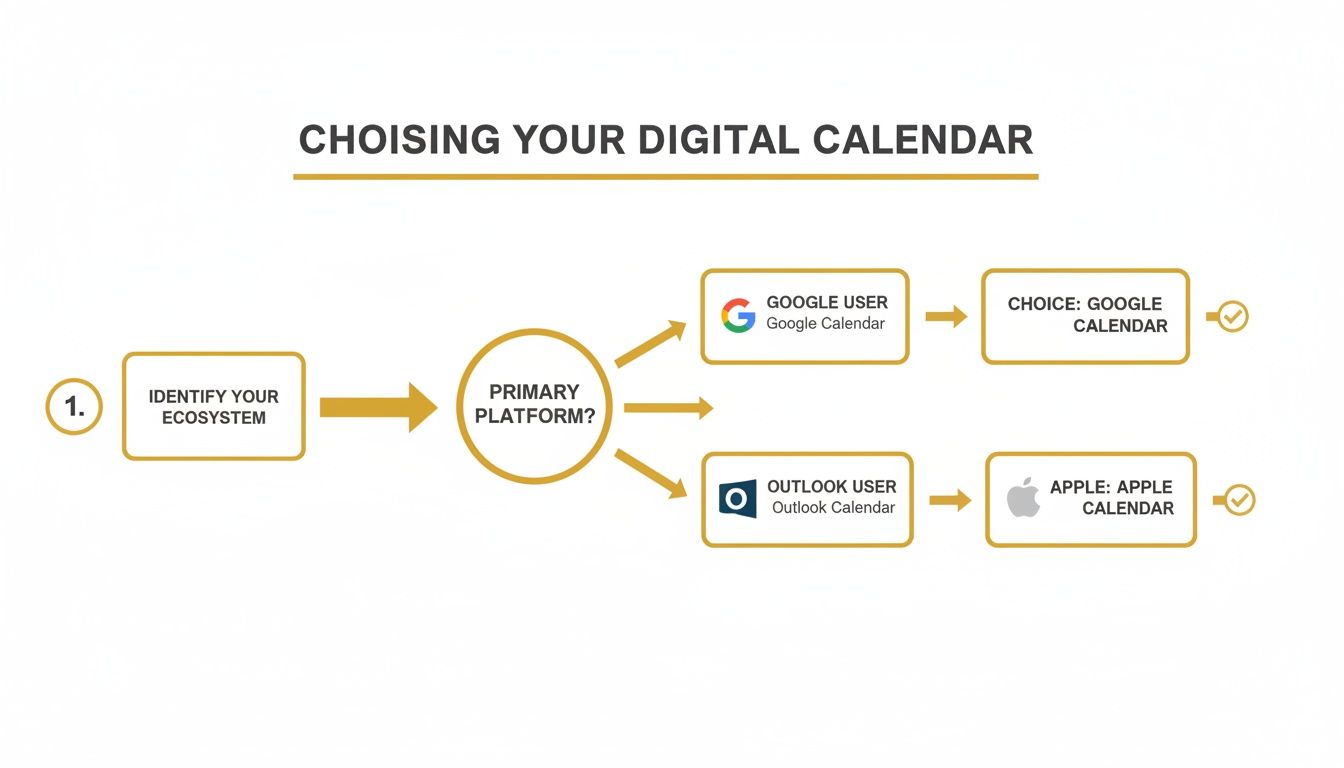
The takeaway here is that your choice of a primary calendar—be it Google, Outlook, or Apple—should align with the tools you already rely on every day.
The Gold Standard: True Two-Way Synchronization
For a system that's truly bulletproof, you need two-way synchronization. This isn't just a copy; it’s a live, active connection between your calendars. When you add, edit, or delete an event on one, the change reflects on the other almost immediately.
This is the non-negotiable standard for anyone managing a business schedule. It means that when you add a dentist appointment to your personal iPhone calendar, that time is instantly blocked off on your work calendar and, most importantly, on your client booking page. This real-time data exchange is what makes automated scheduling so reliable.
True two-way synchronization is the engine of a conflict-free schedule. It moves beyond just viewing events to actively managing your availability across all aspects of your life, ensuring your business always has an accurate picture of your time.
Getting this set up often means using a third-party tool or a native integration that you authorize to manage events across both calendars. For those of you juggling multiple Google accounts for different projects or clients, a crucial first step is to merge multiple Google Calendars into one for a cleaner, more manageable view.
Setting Up a Basic Two-Way Sync
While the exact steps can differ, the core idea is the same everywhere. Let's take a common scenario: syncing a personal Google Calendar with a primary Outlook calendar for work.
- Find a Sync Tool: These platforms don't always play nicely together for a true two-way sync right out of the box. You'll likely need a dedicated service designed to connect different calendar ecosystems.
- Authorize Both Accounts: You’ll need to grant the sync tool permission to access both your Google and Microsoft accounts. This is what allows it to read events and, crucially, write changes back and forth.
- Configure Sync Settings: You can usually customize how it works. You can choose the direction (e.g., Google to Outlook, or both ways) and pick the specific calendars you want to connect.
This process ensures that every single event, whether it's a client meeting or a personal reminder, is accounted for in your master availability. If you want a more detailed walkthrough, our guide on how to sync your iPhone and Google calendars is a great resource. You can find it here: https://kejoola.com/blog/how-to-sync-iphone-calendar-and-google-calendar.
While you can set this up manually, modern scheduling platforms handle it for you. A system built to provide Booking-ready websites for service pros will connect to all your calendars during setup, creating a powerful, automated two-way sync without the technical headache. This is the foundation that allows a system to intelligently manage your availability 24/7.
How to Automate Your Schedule and Stop Manually Booking
So, you’ve wrangled all your calendars into one central hub. That’s a huge win—you can finally see your entire life in one place. But that’s really only half the battle.
The real game-changer is when you stop just looking at your unified calendar and start letting a smart system manage it for you. This is where you graduate from being a stressed-out calendar admin to having an automated assistant that does the heavy lifting.
The next step is to layer an intelligent scheduling tool over your new command center. Instead of just showing you a conflict between a client meeting and your kid's soccer game, the system prevents that double-booking from ever happening in the first place.
The Power of an Intelligent Booking System
Think of a platform like Kejoola as the brain of your entire scheduling operation. It plugs into your central calendar, reads all your existing commitments in real-time, and automatically manages your public availability.
The moment you block off time for a dentist appointment, your booking page instantly reflects that you're busy. No frantic manual updates needed.
This shift from a reactive to a proactive system is what gives you back hours of your life every single week. It’s the difference between manually checking three different calendars before replying to an email and letting a client book a perfectly valid, conflict-free slot at 10 PM on a Sunday while you’re relaxing.
Automation isn't just about convenience; it's a complete shift in how you manage your most valuable asset—your time. It turns your calendar from a simple record-keeper into a 24/7 assistant that actively works for your business.
Overloaded calendars are a massive productivity killer. A Microsoft Ignite survey found that even though 58% of employees try to block out time for deep work, most only get about 31% of the focus time they actually need. It's even worse for service businesses, where small teams lose an astonishing 47% of their time to wasteful meetings and a painful 13.7% still resort to manually copy-pasting their availability.
This in-depth meeting statistics report highlights the chaos—and this is exactly the problem automation solves.
The image below gives you a glimpse of what this looks like in practice. The clean, professional booking page is the front door, but it's powered by a smart system working behind the scenes.
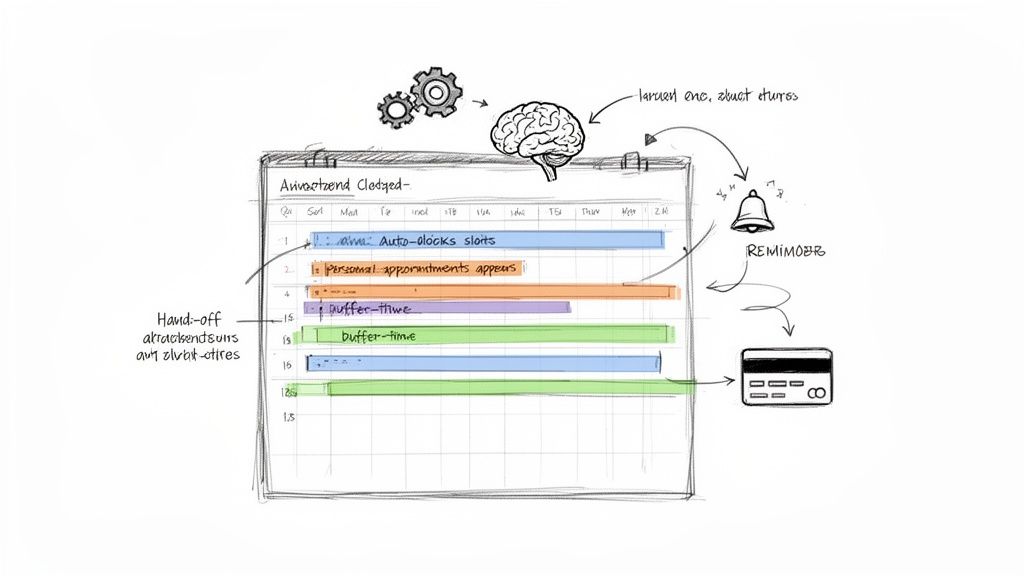
This simple, client-facing interface is constantly checking all your synced calendars to make sure it only ever offers up legitimate openings.
Key Automation Features That Give You Your Time Back
A great scheduling tool does way more than just find empty slots. It handles the entire client journey, from the initial booking right through to the follow-up.
Here are the features that make the biggest difference:
- Automatic Buffer Times: You can set rules to add padding before or after every appointment. This builds in time to prepare, decompress, or travel, preventing back-to-back burnout without you ever having to think about it.
- Automated Reminders and Confirmations: The system takes over sending customized email or text reminders, which drastically cuts down on no-shows. Instant confirmations give both you and your client immediate peace of mind.
- Integrated Payments: Want to require a deposit or full payment upfront? Easy. This secures your income, weeds out less serious clients, and saves you from the awkward task of chasing invoices later on.
- Self-Service Rescheduling: Let clients reschedule or cancel on their own, based on rules you control (like a 24-hour notice policy). This single feature can eliminate dozens of back-and-forth emails every month.
When you put these pieces together, you're building a resilient, hands-off system. For a deeper look, check out our guide on how to automate service booking. This is how you finally break free from manual booking and let your schedule work for you. Platforms designed to provide Booking-ready websites for service pros bundle all of this together, creating a powerful, all-in-one solution for any service business.
Advanced Scheduling Strategies for Growing Teams
Juggling your own schedule is one thing. The real challenge begins when you bring team members, clients, and shared resources into the mix. For any growing agency, clinic, or studio, figuring out how to manage multiple calendars isn't just about staying organized—it's about keeping the entire operation running smoothly.
The goal is to create a system that’s scalable and error-proof, one that helps your team work together instead of creating scheduling logjams. This means going beyond basic calendar syncing and stepping into the world of shared resources and smart team scheduling. And the demand for these solutions is booming. The global calendar app market hit $5.71 billion in 2024 and is expected to grow at a 10.4% CAGR through 2033. Businesses that move to cloud-based tools can slash scheduling time by up to 75% and cut errors by 90%. You can dig deeper into these market trends to see how they're impacting service providers.
Creating Shared Resource Calendars
One of the first headaches a growing team runs into is managing shared assets—that one conference room everyone wants, a pricey piece of equipment, or even the company van. Without a system, it's a constant battle that ends in frustrating double-bookings.
The fix is surprisingly simple: create dedicated "resource calendars." Both Google Workspace and Microsoft 365 let you set up a separate calendar for each shared item.
- Conference Room A: A calendar that shows exactly when the main meeting space is booked.
- Podcast Studio: A schedule for the recording gear to make sure teams don't show up at the same time.
- Client Demo Account: A calendar for reserving access to a shared software license.
To book a resource, team members just "invite" it to their event, the same way they'd invite a colleague. The resource calendar then automatically accepts or declines based on its availability, giving everyone a clear, conflict-free view of what's free and when.
Managing Team Availability and Permissions
Once your physical resources are sorted, it’s time to manage your people. This is where a unified booking system becomes essential. Instead of trying to cross-reference a dozen different calendars, a central platform pulls everyone’s availability into a single, cohesive view.
Of course, all that transparency has to be balanced with control. You’ll need to set up permissions thoughtfully.
- Admins: Need full edit access to manage team schedules, reassign bookings, and override conflicts when something urgent comes up.
- Team Members: Should be able to connect and manage their own calendars, but only have read-only access to others’ schedules. They can see who’s available without accidentally deleting a colleague’s appointment.
- Clients: See a clean, simple booking page with available time slots—they never see the messy backend of who’s working when.
The key is to grant just enough access for seamless collaboration without creating opportunities for error. Good permission settings build a system that is both transparent and resilient.
Tackling International Time Zones
For any business with a global footprint, time zones are a constant source of confusion. Imagine a consulting firm in New York with team members in London and clients in Tokyo. Trying to coordinate a call manually is a recipe for a 3 a.m. meeting for someone.
A smart scheduling tool handles this automatically. When a client in Tokyo visits the booking page, the system instantly shows them available slots in their local time, Japan Standard Time (JST). When they book, the appointment pops up correctly on the New York consultant’s calendar in Eastern Daylight Time (EDT) and the London team member’s calendar in British Summer Time (BST).
This automatic conversion removes all the guesswork and potential for error, making global collaboration feel effortless. It’s a standard feature in platforms that provide Booking-ready websites for service pros, because they’re designed for the realities of a modern, distributed workforce.
Common Questions I Hear About Juggling Calendars
Once you get a system dialled in, a few common "what if" scenarios always seem to pop up. Think of this as the troubleshooting section—the real-world sticking points people run into when they start merging their digital lives.
Let's walk through some of the questions I get asked most often.
How Can I Share My Availability Without Showing Everyone My Personal Business?
This is a big one. You need to block off time for a dentist appointment, but you definitely don't want a new client seeing "Root Canal Prep" on your public booking page. Privacy is non-negotiable.
Thankfully, there's a simple fix built right into most calendars. In platforms like Google Calendar, you can adjust the visibility settings for each individual calendar. By setting your personal calendar's sharing permissions to show only your "Free/Busy" status, you achieve the perfect balance. People will see that you're unavailable during that time, but the details of why remain completely hidden.
A good scheduling tool takes this a step further. It automatically reads your synced personal calendars as "busy" and simply won't offer those slots to clients. It's privacy by default—no fiddling with settings required.
This is exactly why integrating your calendars properly is so powerful. It respects your boundaries without you having to think about it.
What's the Best Way to Handle Recurring Appointments?
Weekly team stand-ups, that non-negotiable Tuesday morning gym session, your kid's recurring soccer practice—these repeating events can cause scheduling chaos if you don't manage them from a central point.
My advice is simple: create any recurring event in your one, primary "command center" calendar. Don't add it to your work calendar and then a separate, identical one on your personal calendar. Just create it once in your main hub.
As long as that calendar is properly synced with everything else, that time block will be protected everywhere, every single week. That yoga class you have every Thursday morning? It will automatically make you unavailable in your booking software without you ever having to lift a finger again.
Why Isn't My Subscribed Calendar Updating Instantly?
Ah, the dreaded sync lag. This is almost always because you're using a simple "subscribe" feature, usually via an iCal link. Think of a subscribed calendar as a read-only snapshot. Your calendar app will only check for updates periodically—sometimes every few minutes, but sometimes it can take hours.
For a service business, that kind of delay is a recipe for double-bookings. It's just not reliable enough.
What you need is a true two-way sync. This is a much more robust connection, usually handled via an API, which is how modern scheduling platforms are built. With a two-way sync, changes are pushed and pulled the second an event is created, edited, or deleted. Your availability is always, and I mean always, perfectly up to the minute.
Can I Actually Manage Schedules for an Entire Team in One Place?
You can, but this is the point where trying to DIY it with a bunch of shared calendars completely falls apart. Manually cross-referencing a dozen different schedules is a full-time job in itself and a magnet for human error.
This is where a dedicated team scheduling platform becomes an absolute necessity. Here’s how they solve this headache:
- A Central Hub: You invite your team members, and they each connect their own work calendars to the system.
- Combined Availability: The software instantly pulls everyone's availability into a single, unified view. You can see at a glance who is free and when.
- Intelligent Booking: You can set up round-robin assignments, let clients book with specific team members, or create group appointments. The system ensures no one gets overbooked.
It turns a chaotic mess into a clean, scalable process, letting you manage everyone's time from one dashboard without losing your mind.
Ready to stop juggling schedules and start growing your business? Kejoola offers Booking-ready websites for service pros. Build a professional online presence in minutes, with smart scheduling and client management tools built right in.