How to Sync iPhone Calendar and Google Calendar: A Quick Guide
A quick, step-by-step guide to syncing your iPhone and Google calendars. Fix common issues and ensure your schedule is always up-to-date to avoid double-bookings and missed appointments.
Josh · Jan 1, 2026 · 11 min read
- calendar sync
- iphone
- google calendar
- productivity
The simplest, most direct way to get your Google and iPhone calendars talking is to add your Google account right into your iPhone's settings. Just head to Settings > Calendar > Accounts > Add Account, and you'll be able to see all your Google events inside the native Apple Calendar app.
Why Flawless Calendar Syncing Is a Deal-Breaker
If you run a service business, trying to manage appointments scattered across different calendars is a guaranteed path to chaos. When your iPhone and Google calendars aren't on the same page, it's not just a minor annoyance—it's a real threat to your reputation and your bottom line.
The real problem here is the steep cost of a bad sync. Think about it: a therapist misses a last-minute cancellation and wastes an hour, or a cleaning crew shows up to a house that rescheduled yesterday. These aren't just mix-ups; they lead to lost time, unhappy clients, and ultimately, lost income.
The Real Cost of Sync Delays
A unified, real-time calendar isn't just a nice-to-have; it's the engine that runs a modern service business. And sync delays are a very real problem. We’ve all seen it: a new appointment added on Google Calendar via a desktop takes hours—sometimes up to 24 hours—to finally show up on an iPhone. Yet, anything added on the iPhone side syncs back instantly. This frustrating, one-way lag has been a persistent headache for iOS users for years and can completely derail a packed schedule.
Getting your calendars to sync perfectly ensures your availability is always up-to-date, saving you from common, costly mistakes. It helps you avoid:
- Double-bookings that make you look disorganized and force awkward rescheduling conversations.
- Missed appointments that erode client trust and can damage your reputation.
- Team mix-ups about when and where they need to be for a job.
A perfectly synced calendar isn't a luxury; it's the operational backbone of your business. It cuts down on administrative chaos and protects the professional image you've worked so hard to build.
In the end, learning how to properly sync your iPhone and Google calendars is about creating a single source of truth for your entire schedule. This rock-solid reliability frees you up to focus on what you do best—delivering great service—instead of getting bogged down in logistical nightmares.
When it comes to syncing your calendars, the most straightforward approach is built right into your iPhone. This is the official, Apple-approved way to get things talking to each other. It works by linking your Google account directly to iOS, which then allows the native Calendar app to pull in all your events from Google. For most people, this is the perfect place to start.
Let's walk through it. First, open up your iPhone’s Settings app.
You’ll need to scroll down a bit until you see Calendar. Tap that, and then tap on Accounts. Think of this screen as the central hub where your iPhone manages connections to outside services like Google, Outlook, and others.
From the Accounts screen, select Add Account and then choose Google from the list. This will bring up a standard Google sign-in page. Just enter your email and password, and if you have two-factor authentication set up (which you absolutely should), you'll need to verify your identity.
Getting the Sync to Work (and Knowing its Limits)
Once you’re logged in, iOS will ask what you want to sync from your Google account. You’ll see toggles for Mail, Contacts, Calendars, and Notes. Make sure the Calendars switch is flipped to green. That’s the magic button that gives the Apple Calendar app permission to display everything from your Google Calendar.
Now, pop open the Calendar app on your iPhone. After a moment, you should see your Google events appearing right alongside your iCloud appointments.
But here’s a word of caution from experience: you need to understand the limitations of this method, especially when it comes to sync speed. Events you create on your iPhone usually show up in Google Calendar almost instantly. The other way around? Not so much.
I’ve seen it take several hours for an event I added on my desktop's Google Calendar to finally appear on an iPhone. For a service provider managing client bookings, that kind of delay is a deal-breaker.
This built-in method is great for personal use or for anyone who doesn't need real-time updates. But if your business relies on an always-current schedule to prevent double-bookings or keep your team aligned, this sync lag is something you really need to be aware of. It establishes a connection, but it doesn't always deliver the instant, reliable two-way sync that a professional schedule demands.
Choosing the Right Sync Method for Your Business Needs
Not every sync method can handle the high stakes of a busy service business. While the native iOS integration is a decent starting point, the potential for sync delays can be a huge liability when you're trying to avoid double bookings. You need a setup that keeps pace with your business, ensuring every new appointment or cancellation shows up instantly, everywhere.
The choice really boils down to three main paths: using your iPhone's built-in settings, downloading the official Google Calendar app, or subscribing to a calendar's public URL for a one-way view. Each comes with its own trade-offs in sync speed, setup difficulty, and how well it plays with others. A solo therapist might get by just fine with the native sync, but a growing hair salon will hit its limits fast.
Analyzing Your Sync Options
For any service-based business, the two most important factors are sync speed and two-way updates. Think about it: can you confidently change an appointment on your desktop and know it's updated on your iPhone before that client calls to confirm? This is where a side-by-side comparison really helps.
Syncing calendars isn't just a tech chore; it’s a critical business decision, especially for small teams trying to escape spreadsheet chaos. A 2023 Product Hunt analysis revealed that around 60% of professionals who use both Apple and Google products connect their accounts to get better notifications and use handy features like creating an event from a simple text message.
This decision tree gives you a quick visual for navigating the setup, especially if you're dealing with two-step authentication, which can be a common sticking point.
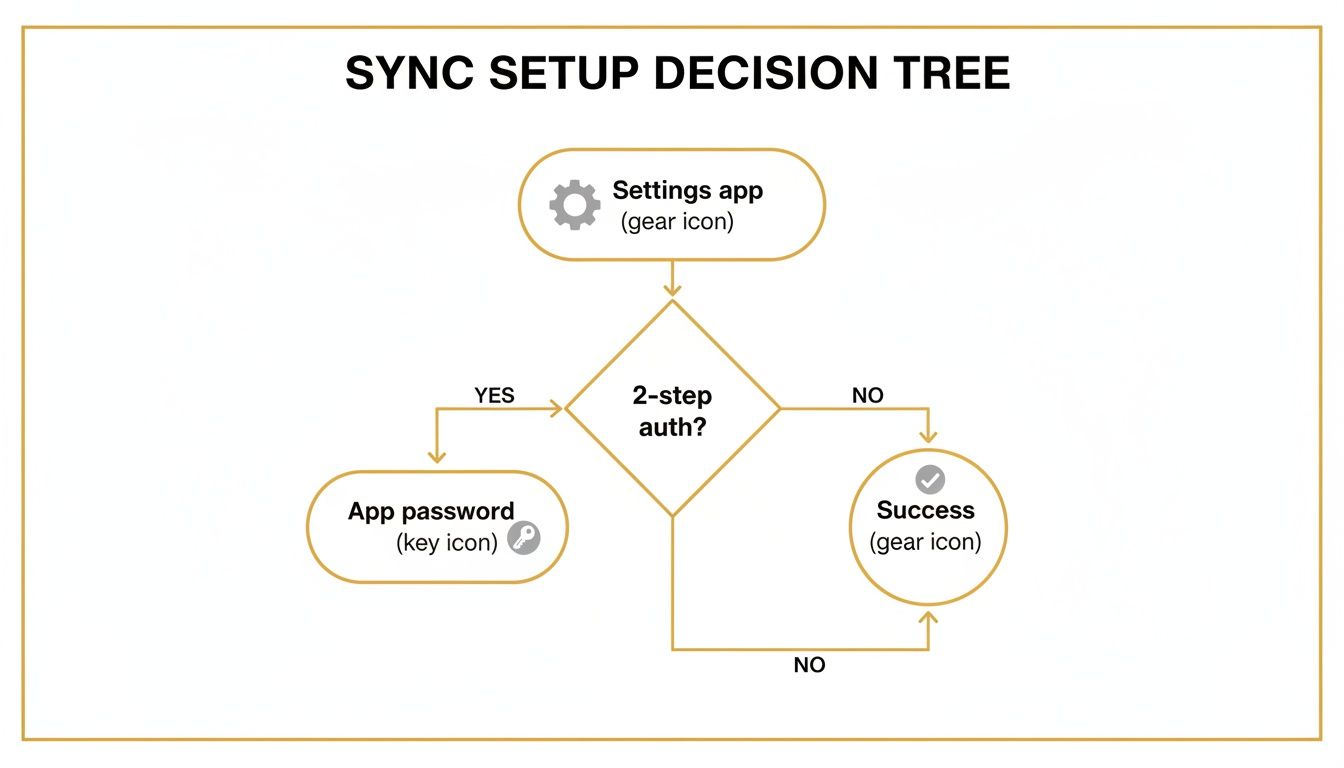
As the flowchart shows, getting past security hurdles like app passwords is often the first real step to a successful sync.
The best method is the one that removes friction from your booking process. If you're spending more time verifying appointments than doing the work, it’s time for a better system.
Let's break down the options in a more structured way. This table compares the three main ways to sync your calendars, helping you decide which is best for your service business's needs.
Comparison of Calendar Syncing Methods
| Sync Method | Best For | Sync Speed | Sync Type | Key Feature |
|---|---|---|---|---|
| Native iOS Integration | Individuals who primarily use the Apple ecosystem and need basic, two-way sync. | Good, but can have delays (fetch/push settings matter). | Two-way | Seamlessly integrated into the native iPhone Calendar app. |
| Google Calendar App | Businesses and individuals who live in Google Calendar and need instant, reliable updates. | Instant | Two-way | Access to all Google-specific features like Goals and event colors. |
| Calendar Subscription (URL) | Viewing external, non-editable schedules like team holidays or a partner’s calendar. | Slow (updates can take hours or even a day). | One-way (Read-only) | Simple way to see another calendar without needing account access. |
Ultimately, choosing the right method from the start saves a lot of headaches down the road. For businesses that need a truly bulletproof solution, our guide on creating a fully booked website shows how to build seamless scheduling right into your operations. That way, you’re picking a method that not only works today but can also grow with you.
How to Fix Common Calendar Sync Problems
Even with a perfect setup, sync issues happen. Suddenly, your schedule feels unreliable, leading to missed appointments and frustrating schedule conflict meaning. When an appointment shows up late—or not at all—it throws your whole day off track. But don't worry, we can usually sort this out with a few simple checks.
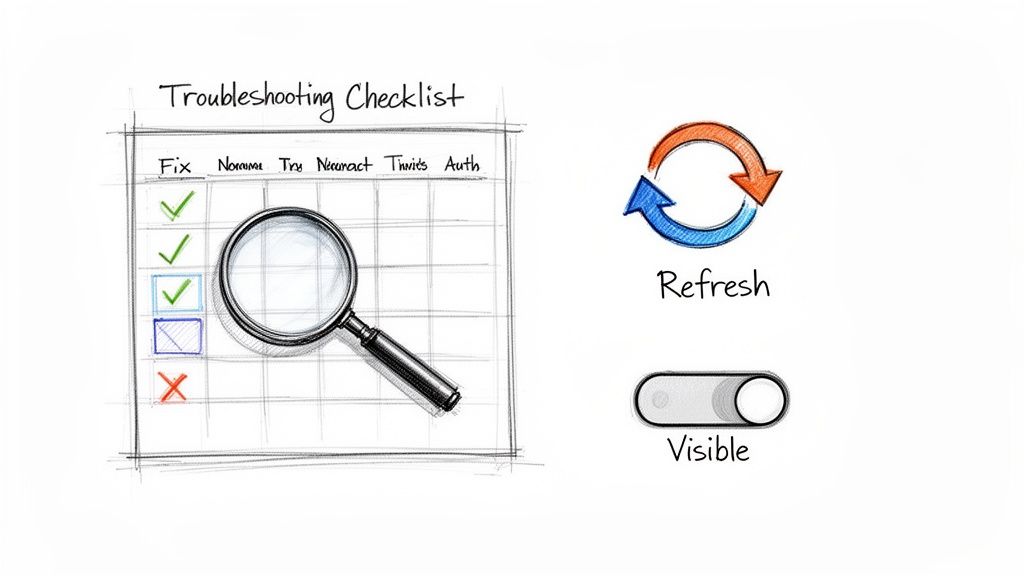
More often than not, the fix is much simpler than you'd expect. A delayed event might just need a manual nudge, or a calendar that seems to have vanished could just be a visibility setting that got toggled off. Before you dive into a full account reset, let's start with the basics.
Quick Fixes for When Your Calendars Aren't Talking
If you’re noticing delays or events just aren't showing up, work through these initial steps. I’ve found these three checks solve about 90% of the sync issues I encounter without needing to get too technical.
- Force a Manual Refresh: The simplest trick in the book. Open the Calendar app on your iPhone, tap Calendars at the bottom of the screen, and just pull down on the list. You'll see a little spinner, which means the app is actively fetching the latest updates from Google's servers.
- Check Your Calendar's Visibility: This one gets people all the time. Log into your Google Calendar account from a desktop web browser. Look at the left sidebar under "My calendars" and make sure the little box next to the calendar you want to see is checked. If it’s unchecked, that calendar is hidden everywhere and won’t sync to your phone.
- Confirm Your Default Calendar: On your iPhone, head to Settings > Calendar > Default Calendar. Is it set to your main Google Calendar? If it’s set to a local "On My iPhone" calendar, any new event you create will only live on your device and will never sync to Google.
A common pitfall is adding new events to a a local, non-synced calendar by mistake. Always double-check your default settings to ensure new appointments are automatically saved to your shared Google Calendar.
By methodically running through these settings, you can quickly get to the bottom of most sync problems. It restores confidence in your schedule and ensures both your iPhone and Google are perfectly aligned.
Achieving True Real-Time Two-Way Sync
For any business that runs on appointments, the native sync between iPhone and Google Calendar just doesn't cut it. The delays and one-way hiccups are more than just an annoyance; they're a real liability. If you've ever had to apologize for a double-booking because your iPhone didn't get a last-minute update from Google Calendar, you know exactly what I'm talking about.
It's a surprisingly common headache. In fact, sync issues trip up nearly 40% of people juggling calendars across different platforms. This is where dedicated tools come in, bridging the gap that Apple's built-in sync leaves wide open. They can crank up sync speed by as much as 95%, offering the kind of instantaneous, two-way updates you actually need. You can find a deeper dive into these solutions by checking out insights on syncing calendar platforms at Add-to-Calendar Pro.
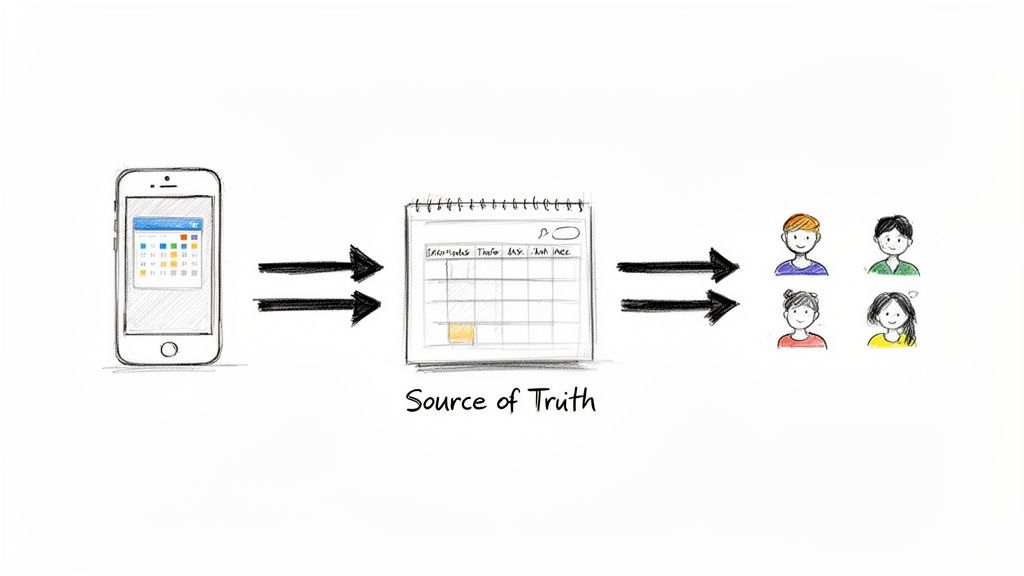
Upgrading Your Sync Strategy
Honestly, one of the simplest and most effective upgrades is to just use the official Google Calendar app as your go-to on your iPhone. By working directly in the Google ecosystem, you sidestep the iOS middleman, ensuring every change you make is reflected instantly.
For businesses where a single scheduling mistake can cost you a client, dedicated booking platforms are the only real answer. They completely bypass native sync issues by creating a single, authoritative "source of truth" for your schedule.
This approach means that every new appointment, every cancellation, and every rescheduled meeting is immediately pushed out to all staff calendars and devices. It’s not just a fix; it’s a strategy that eliminates the root cause of scheduling conflicts for good.
Answering Your Top Calendar Sync Questions
Once you’ve got your calendars talking to each other, a few practical questions almost always pop up. Knowing the answers will help you manage your schedule like a pro and avoid any syncing surprises.
How Often Will My Calendars Actually Sync?
This is a big one. The speed of the sync really comes down to your iPhone’s "Fetch New Data" settings.
You can tell your iPhone to fetch data automatically (Push), which is usually the fastest and provides near-instant updates. If you prefer to save a little battery, you can set it to fetch every 15 minutes, hourly, or even manually. For most people running a business, Push is the way to go to ensure you never miss a new appointment.
Can I Sync More Than One Google Calendar to My iPhone?
Absolutely, and this is a lifesaver for organizing different parts of your life. While your main Google Calendar syncs by default, you’ll need to enable any others you use.
The easiest way to do this is by visiting Google's official Calendar Sync settings page from a browser. From there, you can just tick the boxes for all the calendars you want to see on your iPhone—like "Client Bookings," "Team Meetings," or "Personal Appointments."
This is a critical step for service providers. If you don't sync your "Bookings" calendar, you'll have a major blind spot in your availability, which is a recipe for double-booking.
For example, a consultant might want their "Client Calls" and "Content Deadlines" calendars to appear on their phone, but keep a personal "Family Events" calendar separate and private. It’s all about choosing what you need to see on the go.
Will My Synced Google Events Show Up on My Apple Watch?
Yes, they will, and it works flawlessly. Anything you see in your iPhone's main Calendar app automatically gets mirrored on your Apple Watch.
This means you get all your appointment notifications, reminders, and daily schedules right on your wrist. It's especially handy for virtual meetings—speaking of which, our guide on how to create a Google Meet link can help you add video call invites to those events in a flash.
Ready to stop juggling schedules and create a single source of truth for your business? With Kejoola, you can build a professional, booking-ready website in minutes. Our platform offers smart booking, automated confirmations, and flawless calendar updates to eliminate scheduling conflicts for good. Start your 14-day free trial at https://kejoola.com.