How to Book a Plumber Online (What the Site Needs)
Homeowners search “book a plumber online.” Here is what a US plumber’s site must provide — clear services, house-call booking, job notes for address and access, buffers, confirmations, and a Google Booking URL that opens a real bookable page.
Josh · Sep 4, 2026 · 7 min read
- book a plumber online
- plumber website
- online booking
- google business profile
- house calls
- local trades
How to Book a Plumber Online (What the Site Needs)
A homeowner types “book a plumber online” after a leak, a clogged drain, or a water heater that quit on a Sunday night. They are not hunting for a brochure. They want a real shop that lists the job, takes the address, and locks a time without another round of “you free Thursday?” texts.
If you are the plumber, the search is a conversion test for your site and for the Website and Booking URLs on your Google Business Profile. This walkthrough focuses on US house-call plumbers who want online booking.
What “book a plumber online” actually means
The intent is narrow. The customer expects:
- A business that looks like a plumbing company, not a chat thread.
- Services they recognize (drain clearing, water heater, leak repair) — not vague “consultation.”
- A flow that lets them leave the job address in booking notes, because the work happens on their driveway.
- A confirmed time with enough buffer that your van can finish the previous stop.
- A Book action on Google Search or Maps that opens that same flow — not Messenger, not Instagram, not a shortener.
Electricians booking panel upgrades and cleaners booking recurring house visits share the same pattern. The rest of this article stays on plumbing.
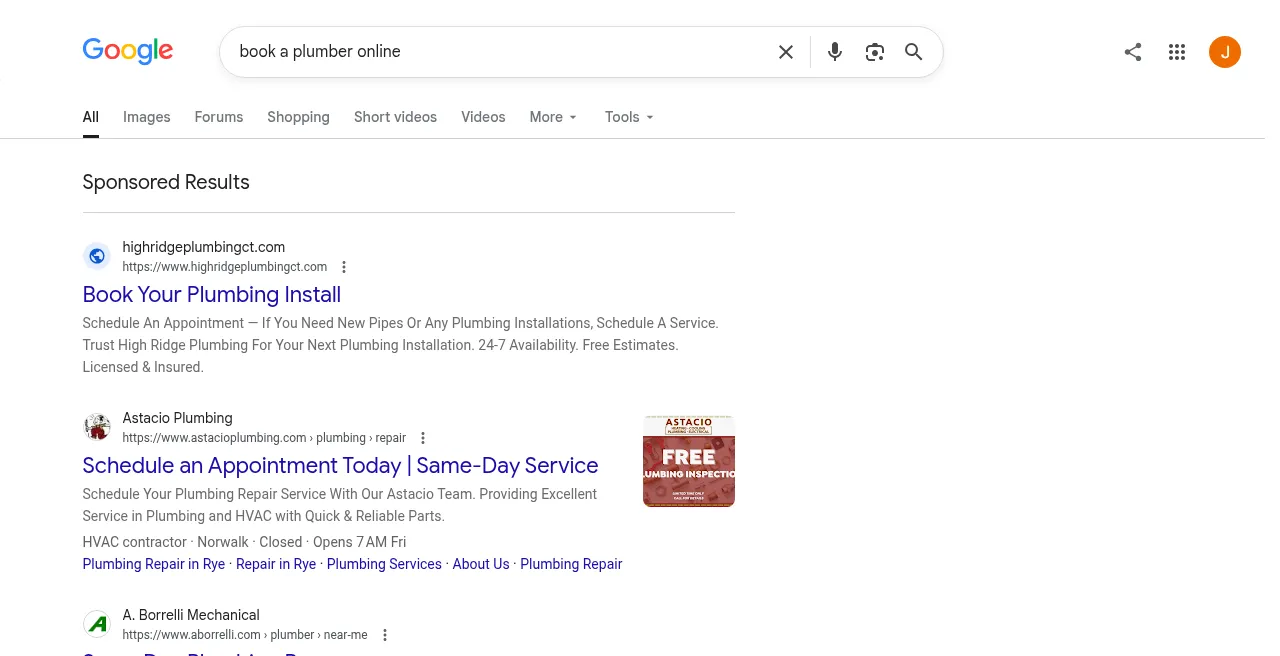
That SERP is the bar: titles and ads promise booking or scheduling. Your site has to deliver that promise when they leave Google.
What the site must provide (checklist)
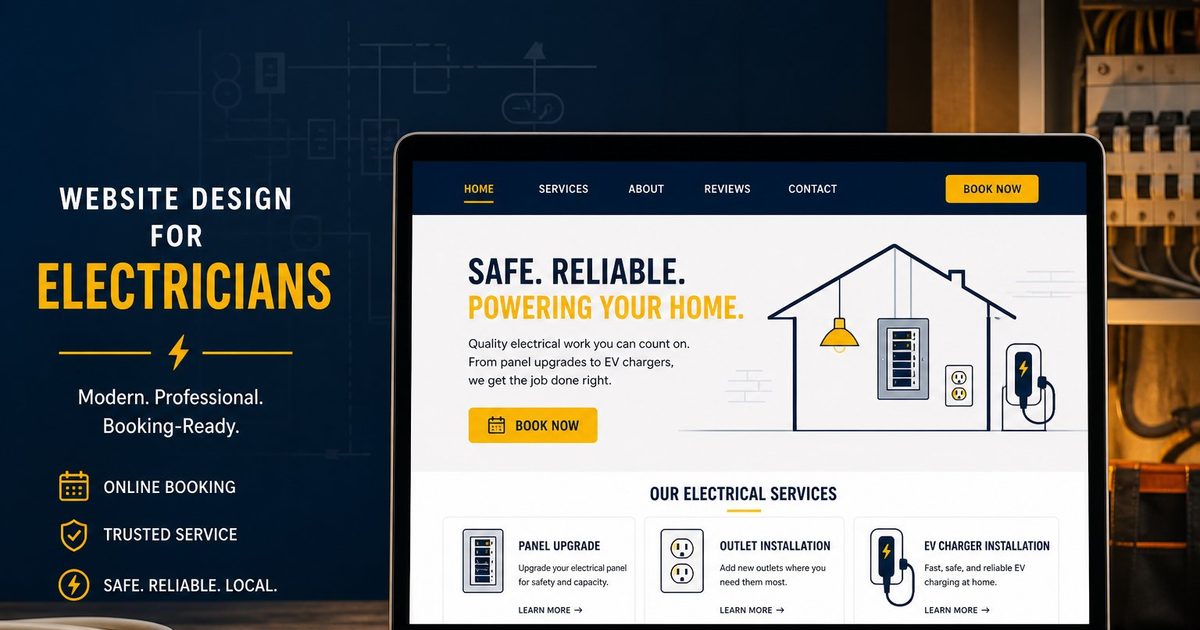
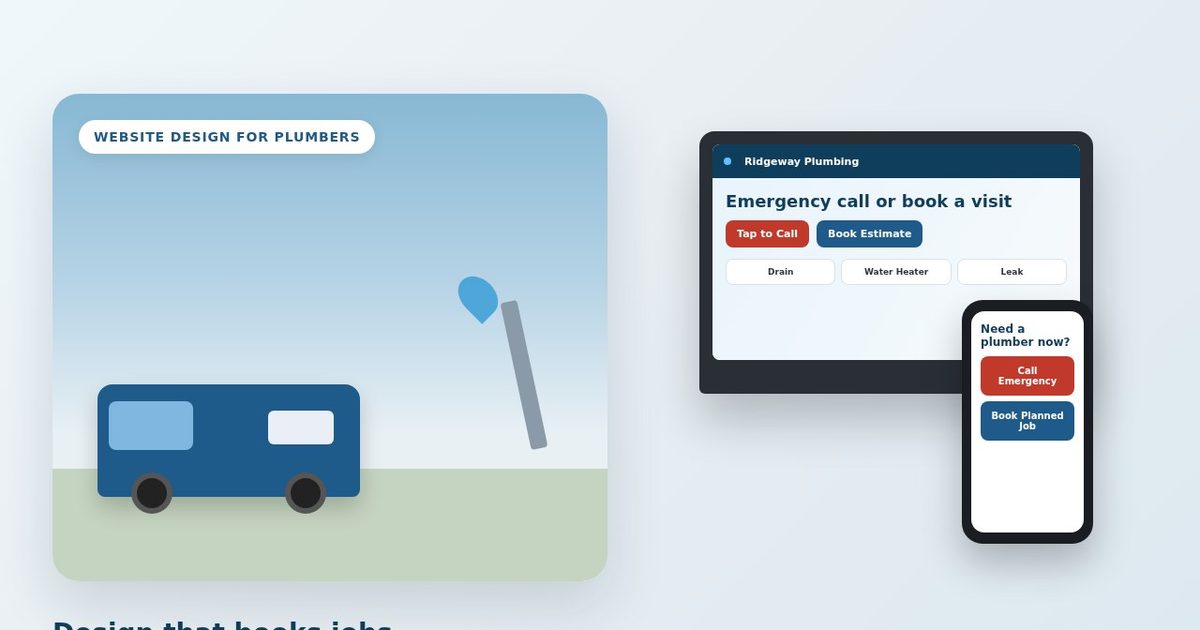
A plumber who converts online searchers usually needs a short, bookable presence — not a twenty-page brochure. Kejoola, for example, publishes a fixed 4-page site (Home, Services, Blog, Contact) with online booking for local service businesses including plumbers.
Use that as a checklist of what has to exist, regardless of which tool you use:
| Site piece | Job for the homeowner | Job for the van |
|---|---|---|
| Home | Prove you are a real local plumber | Match name/phone/area to your Google listing |
| Services | Pick drain, water heater, leak, etc. | Map each service to duration and price rules you set |
| Blog | Optional trust and local search support | Not required to finish a booking |
| Contact | Phone, area, emergency notes | Backup when booking is closed |
| Booking flow | Pick service + time + leave the address in the notes box | Calendar, buffers, confirmations |
Without a bookable page, “book a plumber online” collapses back to Call. Related reading if your Maps listing still points at Facebook or has no site at all: Turn your Google Business listing into a bookable website.
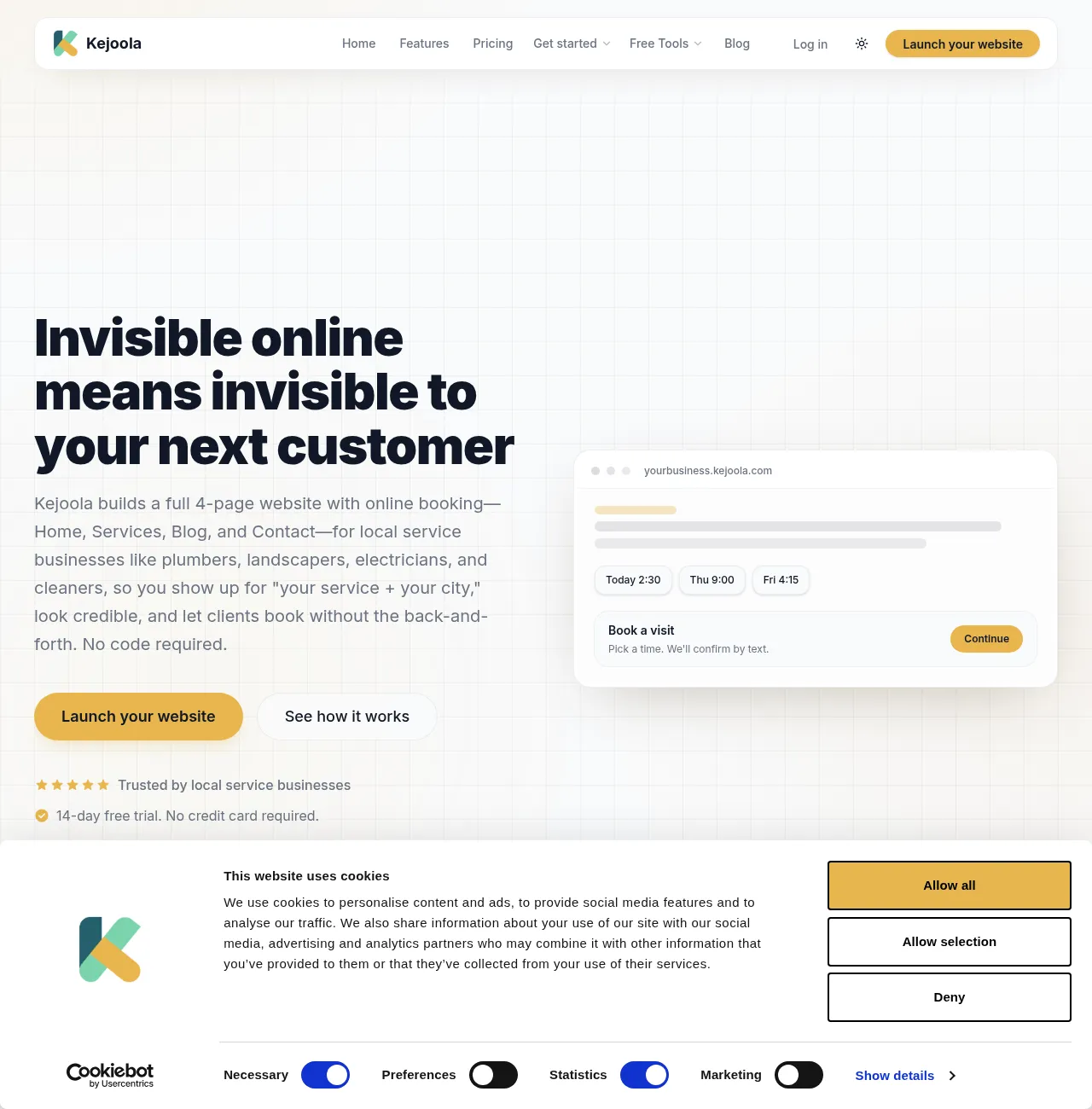
Services page: names a homeowner would search
List jobs the way people search and text: “clogged kitchen drain,” “water heater replacement,” “toilet won’t stop running,” “slab leak inspection.” Avoid only “residential plumbing” or “free estimate” as the sole bookable option.
Each service should answer:
- What it is (one plain sentence).
- Rough visit length (so your calendar duration is honest).
- Whether it is house-call only (almost always for plumbers).
- What you need from them before arrival (photos of the heater, shut-off location, apartment gate code).
Electricians and cleaners can reuse the same rule with their own nouns. For plumbers, the Services page is the difference between a bookable site and a contact form that says “tell us about your project.”
House-call booking: get the address in the job notes
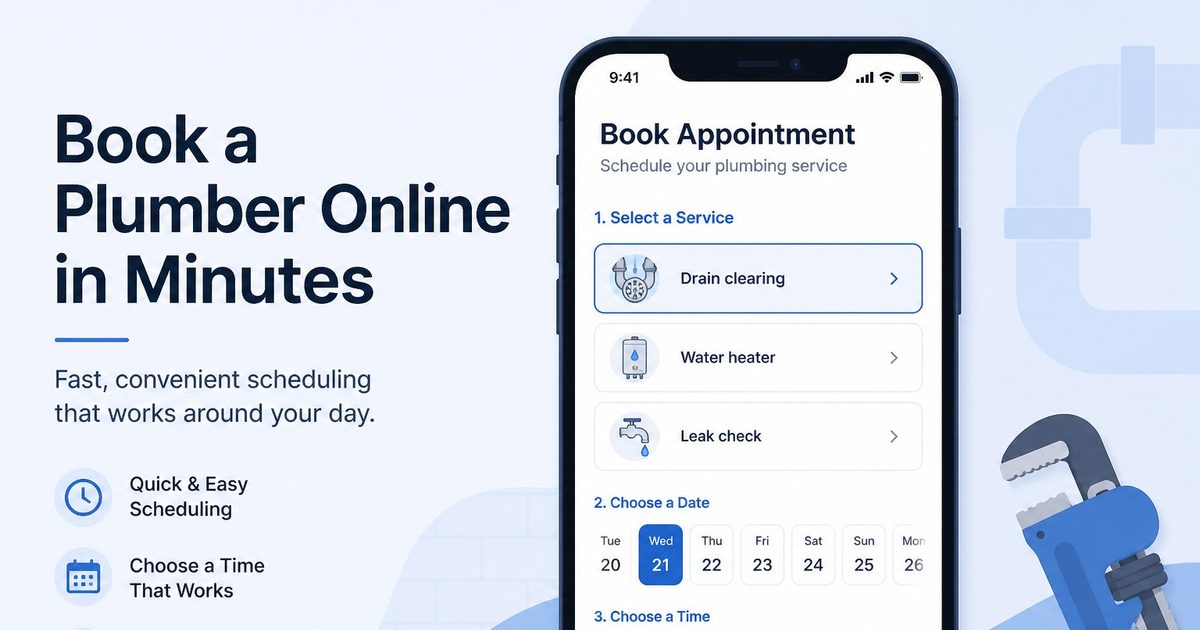
Plumbing is not a Zoom consult. When customers book, they can leave a note about the job, so ask them to include the service address plus any access details in the notes box. Phone and name alone are not enough to route a truck.
Build the flow so the homeowner:
- Chooses the service.
- Sees open times that already include your buffers.
- Leaves a note about the job: address and gate/unit notes.
- Gets a confirmation they can forward to a spouse or landlord.
If your current “booking” is a Messenger thread or a mailto form, it fails this intent even when someone eventually gets on the calendar.
Buffers, confirmations, and what happens after they book
Drive time between stops is the real capacity limit. Put buffer before and/or after each visit so “book a plumber online” does not stack two Austin jobs twenty minutes apart with no drive window. Cap how many of a service type you take per day if same-day drain calls pile up.
After booking, send:
- Immediate confirmation (service, time window, address).
- Reminder before the visit.
- Clear cancel/reschedule path so they are not stuck texting while you are under a sink.
Kejoola’s FAQ describes replacing phone tag and “what time works?” messages with online booking, confirmations, and reminders, plus dashboard cancel/reschedule with client notification. That is the kind of booking experience your stack should deliver.
Put Website + Booking on Google Business Profile
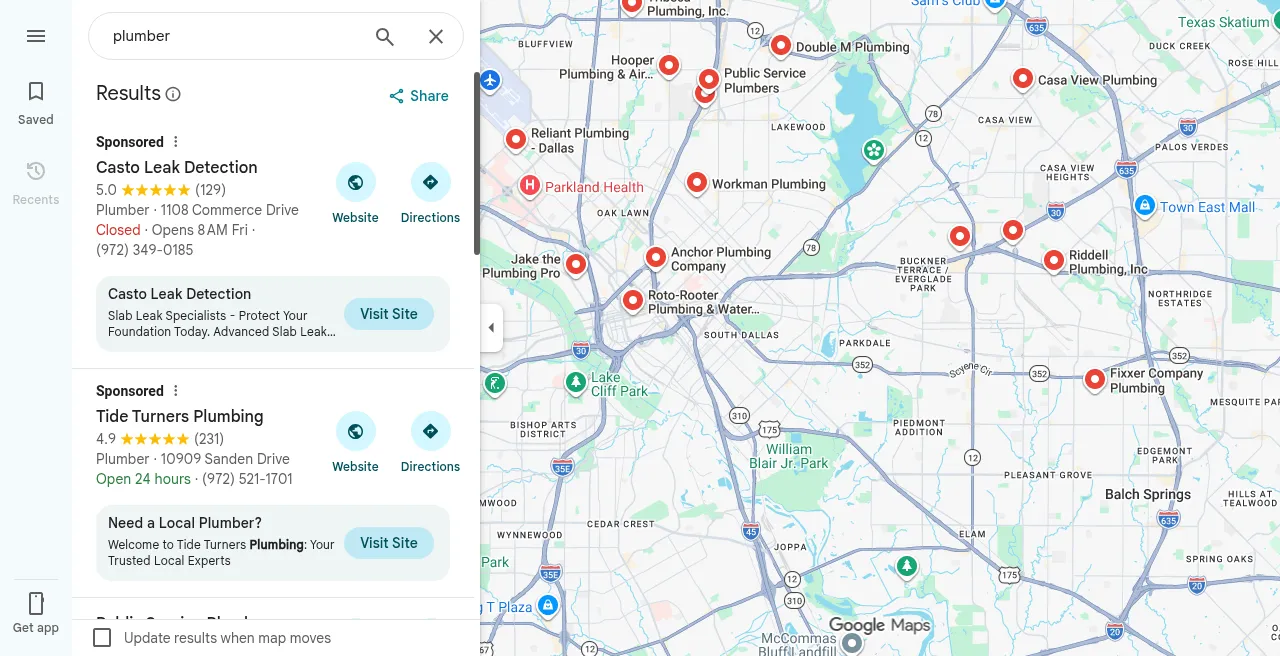
Maps is where many homeowners start. Listings that win the tap show Website (and later Booking) actions — not only a phone number.
Search and Maps are where many of those “book a plumber online” and “plumber near me” clicks start. Google says a Business Profile can include links that help customers learn more, and action links that help them book an appointment from Search or Maps. (Manage your local business links)
- Website — your shopfront (homepage that represents this plumbing business).
- Booking — a dedicated URL where they finish the appointment.
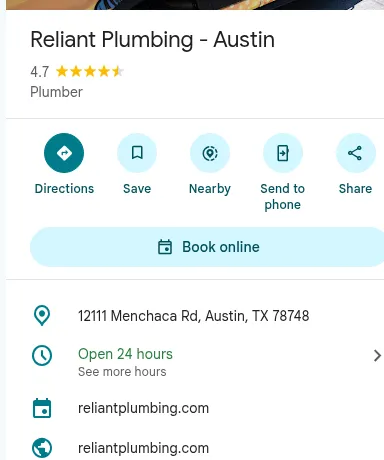
Add the Booking URL (Search and Maps)
From Google’s Help (Manage your local business links):
Google Search
- Go to your Business Profile.
- Select Booking (trades usually want Booking, not food ordering).
- Select Add link (or Add another link if one exists).
- Enter the URL of the page where someone can complete a booking.
- Select Save.
Google Maps
- Go to your Business Profile on Maps.
- Select Edit profile, then the transaction type (Booking).
- Select Add link (or Add another link).
- Paste the booking URL.
- Select Save.
You can set a preferred link when more than one booking link is present. Local business links are not available via the Business Profile API or spreadsheet upload. Google documents up to 10 links per category on that manage-links page; the separate policies page also states a maximum of 20 links per transaction type — follow what your profile UI allows and keep the field clean. (Manage your local business links; Business links policies)
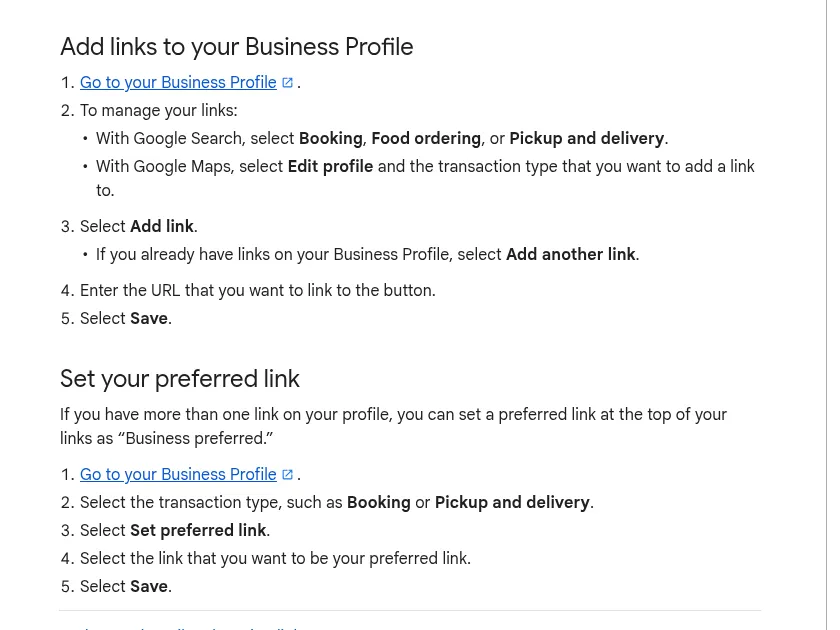
Google Help steps for adding links from Search (Booking) vs Maps (Edit profile). Labels in the owner app can differ.
Rules that block Messenger and shorteners
Google requires a dedicated landing page for the business. The link must let the customer complete the designated action. Local business links cannot be social media sites, messaging links, app store links, or link shorteners. The profile must be verified before you can add a link. Google may remove non-compliant links, and links that cannot be crawled by Google’s business-link verification tools may be removed. (Business links policies & guidelines)
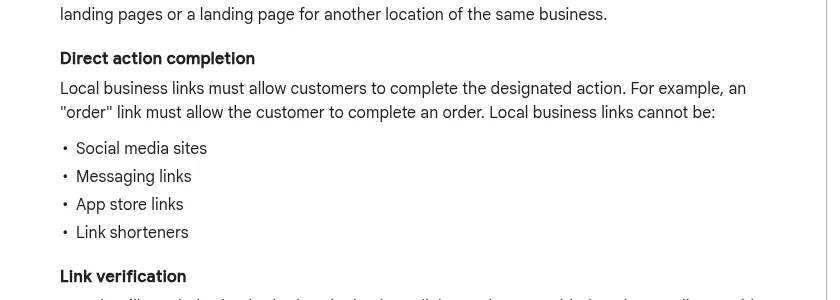
That is why these fail even when the tap “works” on your phone:
m.me/...or Messenger — messaging- Facebook or Instagram profile — social media
bit.ly/...— link shortener- App Store / Play listing — app store link
- Homepage with no way to finish a booking — fails direct action completion
For the step-by-step GBP focus (Website vs Booking fields in more depth), see How to add a booking link to Google Business Profile. This article’s job is different: make sure the destination is plumber-ready before you paste it.
Provider path vs your own booking URL
Google also documents setting up bookings through a provider, or adding your own link to the Business Profile. Providers may charge. Performance data is not available for custom links the way it can be for Reserve with Google. (Set up bookings through a provider)
For a solo or small plumbing company that already owns a bookable page, adding your own Booking URL is the direct path: one less middleman between Maps and your calendar.
Kejoola for a 4-page bookable site (optional)
If you want a booking-first 4-page site instead of assembling a general website only to host a calendar:
- Start at https://kejoola.com — 14-day free trial, no credit card. Plans run $24/month for Lite (website only), $39 for Starter, $89 for Professional, and $159 for Business (annual billing also available).
- Or import from the listing you already have: https://kejoola.com/start/google-business — paste your Google Maps or Business Profile link (Share → Copy link). (Kejoola GBP import)
- Sign-up: https://kejoola.com/sign-up If you already have a site and only need a scheduler embedded, a meeting tool can fill that narrower gap — see Calendly vs a booking website for house calls for that comparison.
Put it together
Homeowners searching “book a plumber online” reward a site that names real plumbing services, gets the job address in booking notes, leaves drive buffers, confirms the visit, and exposes that same URL on Google as Booking — never as Messenger. Build the destination first. Then wire Website and Booking on the profile so Search and Maps send them somewhere that can finish the job.