How to Get Google Reviews for Your Service Business
How to get Google reviews: copy your Business Profile review link or QR, ask every customer the same short way, stay inside Google policy, and reply to every review.
Josh · Oct 11, 2026 · 12 min read
- how to get google reviews
- google reviews
- google business profile
- customer reviews
- home services
- local seo
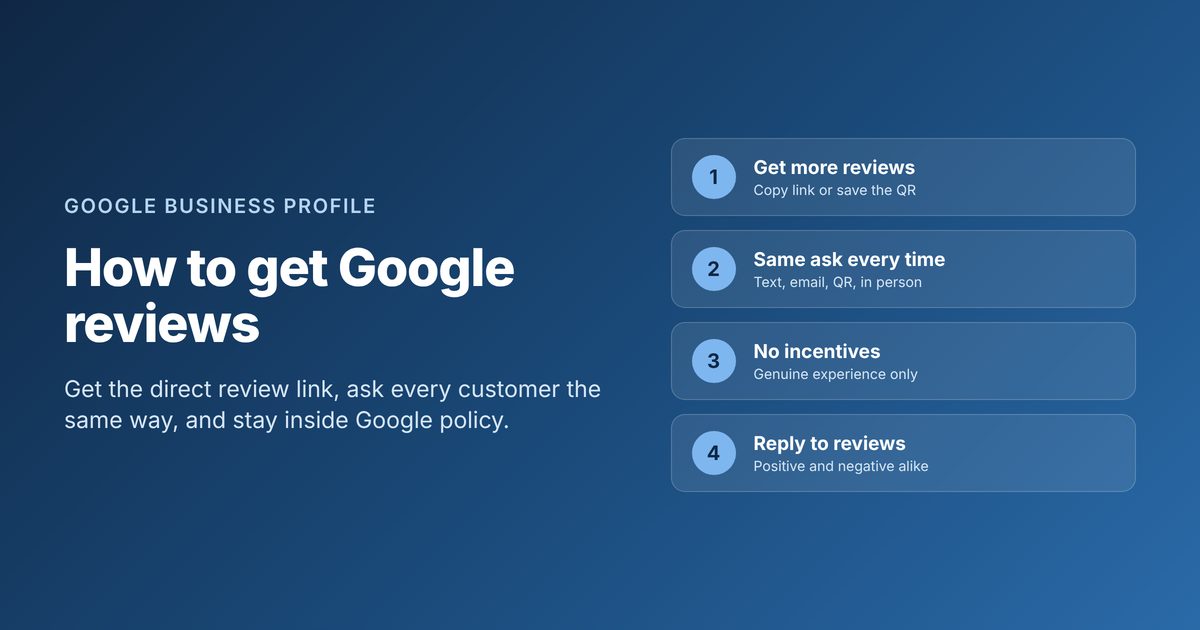
If you want to know how to get Google reviews for a plumbing, HVAC, cleaning, or other home-service shop, start with one direct link. Open your Google Business Profile, select Read reviews, then Get more reviews, and copy the link or save the QR code. Ask every finished job the same short way, never offer a discount for a review, and reply to what comes in.
This guide covers the mechanics for U.S. trades: getting the link, the ask that travels by text or email, the channels that fit field work, Google’s review rules, and how to answer positive and negative posts. Timing of the ask is covered in our when to ask for reviews post. Here the focus is the process you can run after every job.
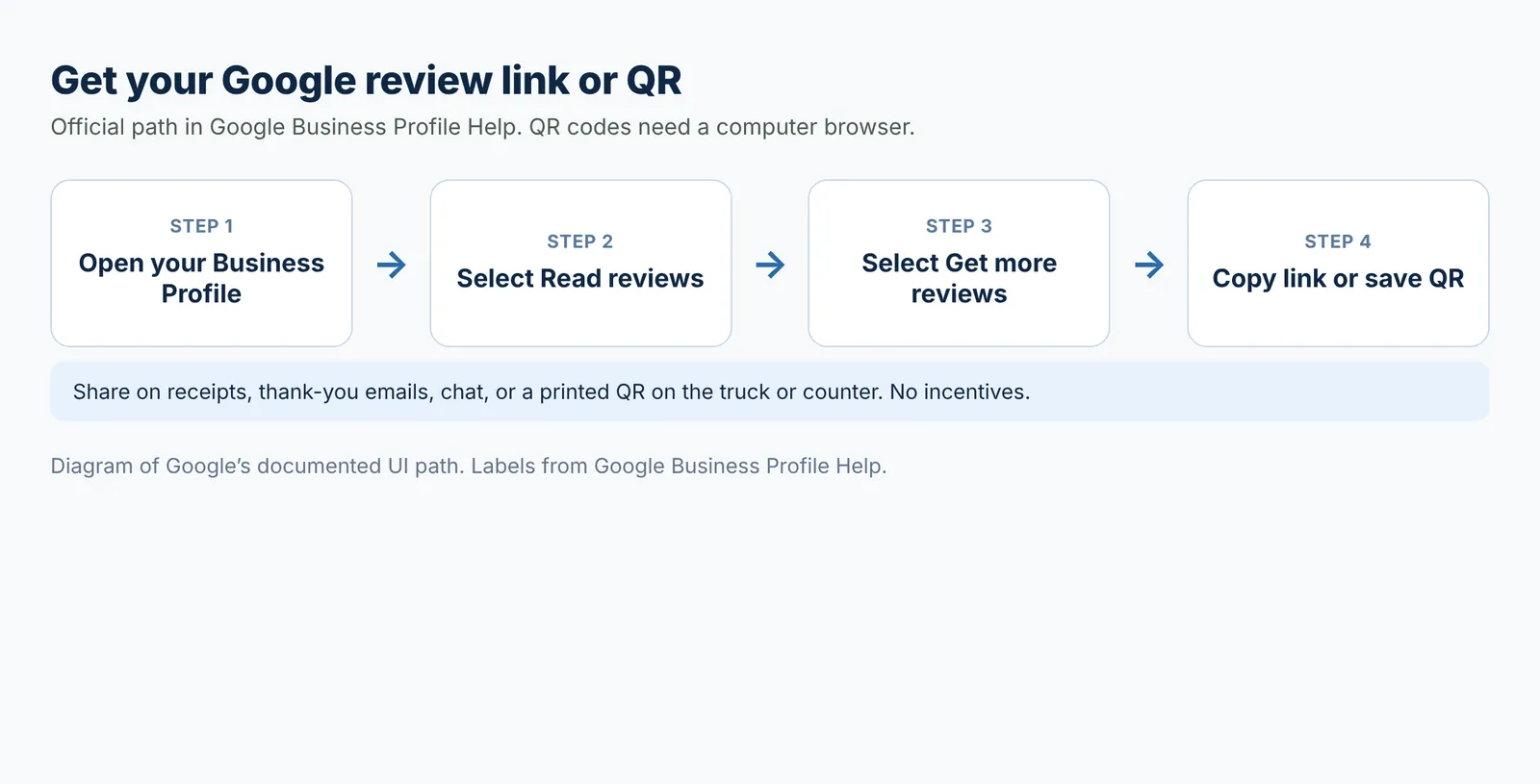
Official path to create a Google review link or QR. QR codes are generated on a computer browser. Diagram of Google Help labels.
Why Google reviews matter for a service business
Homeowners decide who to call while they scroll Maps and Search. Your rating, review count, and a few recent write-ups sit next to your hours and the Call button. A thin profile with two old reviews looks unfinished next to a competitor with steady, recent comments about punctual techs and clean job sites.
Reviews also feed the work you already do offline. A plumber who finishes a water heater install can text a link before leaving the driveway. An HVAC shop that replaces a condenser can put the same link on the invoice. Cleaners and landscapers who finish recurring stops can reuse one short script. The point is not a marketing campaign. It is a repeatable close to the job.
Google says reviews help your business stand out and give potential customers useful info next to your Business Profile in Maps and Search. Customers must be signed into a Google Account to leave a review. They can create an account with a non-Gmail address. (Tips to get more reviews)
Reviews sit beside the rest of your listing setup. If you are also cleaning up your profile, pair this process with a solid local SEO checklist and the steps in how to improve local SEO.
Get your direct Google review link and QR
Without a direct link, customers hunt for your listing, tap the wrong business with a similar name, or give up. Google’s Help Center documents a built-in path that creates both a link and a QR code.
Open Get more reviews
- Go to your Business Profile while signed in as the owner or manager.
- Select Read reviews.
- Select Get more reviews.
- To copy the review link, select Copy.
- To download the QR code on a computer browser, right-click the QR code and select Save image as….
Google notes that review QR codes can only be generated on a computer browser, not on mobile devices. You can share the link or QR on receipts, in thank-you emails, at the end of a chat, or as a printed display. (Create a Google link or QR code to request reviews)
Save the link where your crew can find it
Paste the link into a notes app, a pinned text to yourself, or the footer of your invoice template. Print the QR for the truck, the invoice packet, or the counter if you have a shop. One shared link means every tech and every office person asks the same way.
If your listing is a service-area business without a public street address, keep the profile accurate as you grow reviews. See how to hide your address on a Google Business Profile when that setting applies.
Ask every customer the same way
A consistent ask beats clever one-off messages. Write one short script, put the link in it, and use it after finished work. Skip long stories about how reviews help your ranking. Customers already know what a review is.
Build a three-line script
- Thank them for the job by name or by the work you did.
- Ask if they will leave a Google review about their experience.
- Paste the direct link. End there.
Example for text:
Thanks again for having us out for the AC tune-up, Maria. If you have a minute, a Google review about how the visit went would help other homeowners. Here’s the link: [your review link]
Example for email:
Hi Tom, thanks for booking the drain clear today. If you are willing, please leave a short Google review of the visit: [your review link]. Appreciate it.
Keep the tone plain. Do not coach the star rating. Do not ask them to mention a specific tech by name as a requirement. Google’s rules cover pressure and requested content. More on that below.
Use the same ask on every finished job
Train the office and the field on one script. The tech can mention it in person, then the office sends the link. Or the tech sends the text from the truck before the next stop. What matters is that happy and unhappy customers get the same invitation to share a genuine experience. Selective “only ask if they smiled” patterns break Google’s rules and also leave gaps on busy weeks.
For timing after the job, use that separate timing guide. The steps here stick to the link, the script, and the channels.
Channels that work for trades
Pick the channel your customers already answer. Most home-service shops lean on text, email, a printed QR, or a short in-person ask followed by the link.
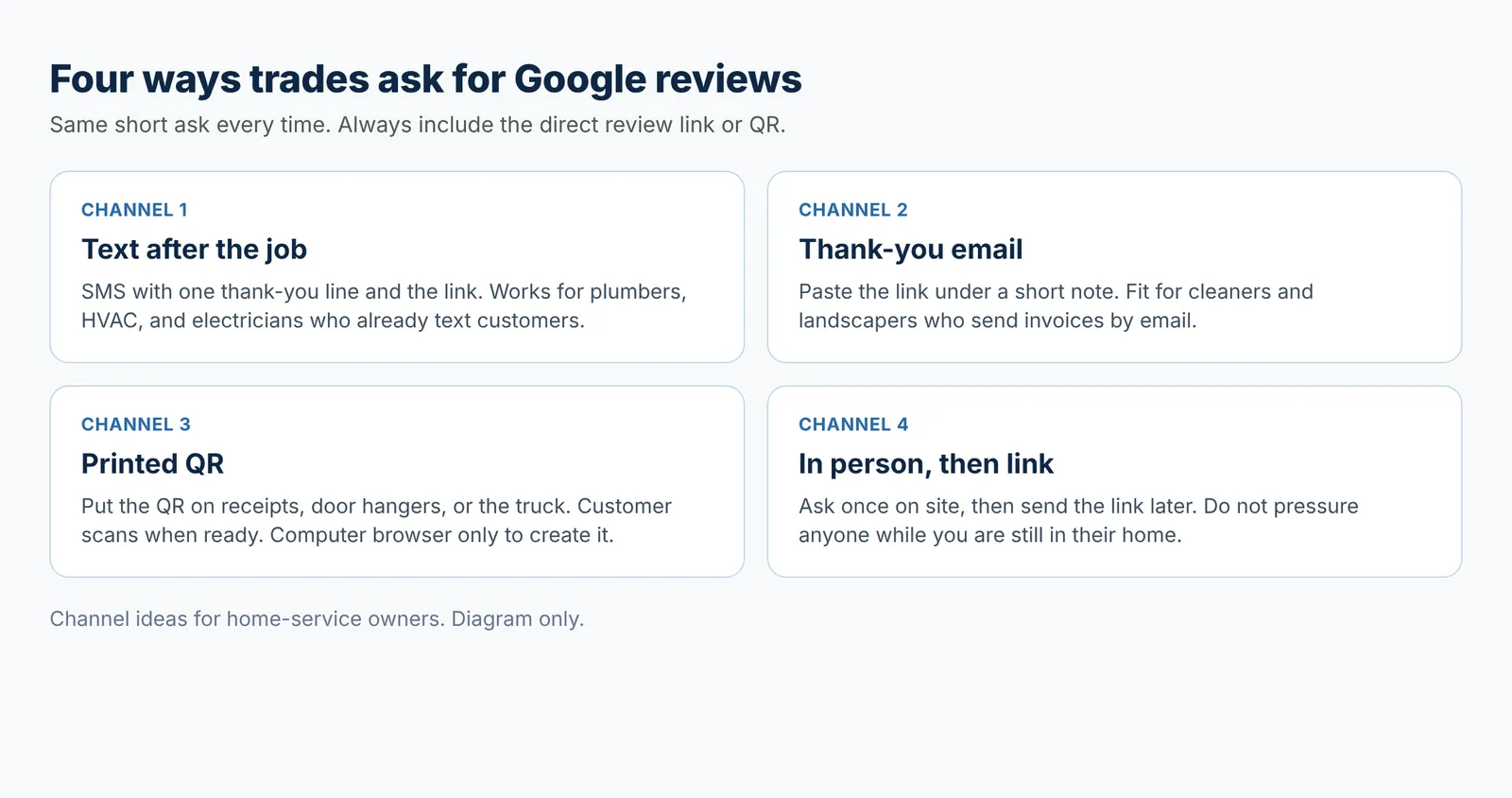
Channel options that fit field work. Always include the direct review link or QR. Diagram only.
Text after the job
Text works when you already message customers about arrival windows and invoices. Send one message with the script and the link. Do not stack three follow-ups in the same afternoon. One clear ask is enough for that day.
Thank-you or invoice email
Email fits cleaners, landscapers, and shops that send written estimates. Put the link under a short thank-you, not buried in a long newsletter. Google’s own tips include thank-you emails as a place to share the link. (Create a Google link or QR code to request reviews)
Printed QR on receipts or the truck
Print the QR once you generate it on a computer. Stick it on invoices, door hangers, or a small card left on the counter. Customers who prefer not to type a long URL can scan when they are ready. Keep a spare stack in the van so the ask does not depend on cell signal at the job site.
In person, then send the link
A verbal ask on site can work if it stays light: “If the visit went well or if something was off, a Google review helps other homeowners.” Then send the link later by text or email. Do not stand over someone with a phone open to the review form. Google does not allow merchants to require or pressure users to leave ratings or write reviews while on the premises. (Prohibited and restricted content)
| Channel | Best for | Trade-off |
|---|---|---|
| Text with link | Plumbers, HVAC, electricians who already text | Easy to ignore if the message is long |
| Thank-you email | Cleaners, landscapers, shops with invoices | Slower open rates than text for some customers |
| Printed QR | Job sites, receipts, truck or shop counter | Needs a computer browser to create the QR |
| In person then link | Larger installs and first-time customers | Must avoid pressure while still on the premises |
Google’s Help page also notes you can send review requests through email, WhatsApp, or a Facebook post from the Get more reviews flow. Use the channel your customers actually open. (Create a Google link or QR code to request reviews)
Stay inside Google’s review rules
Google treats reviews as genuine experiences. Breaking the rules can get content removed and can put the profile at risk. The safe path is simple: ask everyone the same way, offer no reward, and do not steer the stars or the wording.
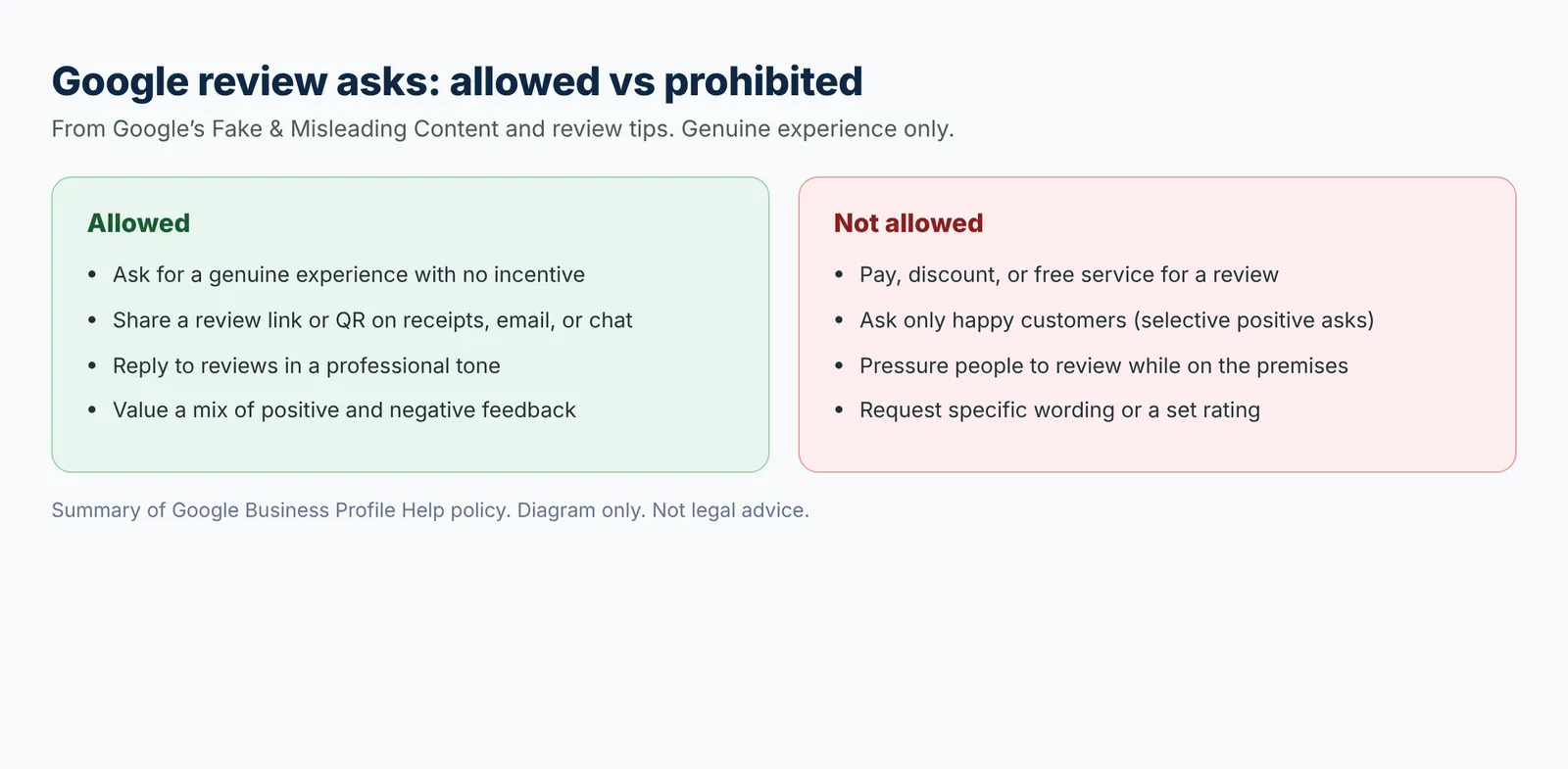
Summary of Google’s Fake and Misleading Content rules for review asks. Diagram only.
What you may do
Google allows merchants to solicit or encourage content that represents a genuine experience, without offering incentives and without trying to influence the rating or the contents of the review. You may remind customers to leave reviews with a Google link or QR. You may reply to reviews. Google also notes that a mix of positive and negative feedback often feels more trustworthy. (Tips to get more reviews, Prohibited and restricted content)
What you may not do
Google does not allow merchants to:
- Offer incentives such as payment, discounts, or free goods or services in exchange for posting a review, changing a review, or removing a negative review
- Discourage or prohibit negative reviews, or selectively solicit positive reviews from customers
- Require or pressure users to leave ratings or write reviews while on the premises
- Request that specific content be included, including content that identifies a staff member
Those limits come from Google’s Fake and Misleading Content and Rating Manipulation rules. (Prohibited and restricted content)
Practical do and don’t for a trade shop
Do keep one script and one link for every finished job. Do thank people who review, in the reply, without adding a coupon. Do not run “leave a review, get $20 off your next clean.” Do not tell the crew to ask only five-star customers. Do not hand a tablet to a homeowner in the living room and wait while they type.
Reply to every review
Google recommends replying so customers see that feedback matters. Replies are public. Keep them short, polite, and specific. Avoid using the reply box as an ad for a promotion. (Tips to get more reviews)
How to reply in Business Profile
- Go to your Business Profile.
- Select Read reviews.
- Next to the review, select Reply.
- Enter your reply in the dialog box.
- Select Reply.
Your business must be verified before you can reply. Google reviews replies for policy fit. Approved replies usually post within about 10 minutes, though review can take longer. The customer is notified when you reply and can still edit their review afterward. (Manage customer reviews)
Positive reviews
Thank the person by name when you can. Mention the job in plain words (“glad the water heater install went smoothly”) without inventing details they did not write. Invite them back only if it fits. Skip deals and promo codes in the reply.
Negative reviews
Acknowledge the issue. Apologize when it is fair. Offer a phone or email path to finish the fix in private. Do not argue in public or share private customer details. Google’s tips for negative replies include protecting privacy, being honest about limits, personalizing the reply, and responding in a timely way. If a review violates Google’s content policies, flag it through Google’s process instead of fighting it in the reply. (Tips to get more reviews, Manage customer reviews)
Common problems and how to fix them
Customers say they cannot leave a review
They usually are not signed into a Google Account. Google requires a signed-in account to leave a review. Tell them they can create one with a non-Gmail email if they prefer. (Tips to get more reviews)
The QR option is missing on your phone
Generate the QR on a computer browser. Google states that review QR codes currently can only be generated on a computer browser, not on mobile devices. Copy the link on your phone if you only need the URL. (Create a Google link or QR code to request reviews)
Reviews are slow even when you ask
Check that you are sending the direct Get more reviews link, not a homepage or a Maps search that forces extra taps. Keep the message under a few sentences. Confirm the ask goes out after finished work, not mid-job. For timing windows, use the timing guide linked in the intro.
Someone left a review that looks fake or abusive
Do not offer them a discount to change it. Flag reviews that appear to break Google’s content policies. Reply calmly when a reply is still useful, and move the detailed fix offline. (Manage customer reviews)
Your reply never shows up
Google reviews replies before they post. Most clear in about 10 minutes. Some take longer, up to 30 days in Google’s own note. Edit and resubmit if Google asks you to change the reply. (Manage customer reviews)
Questions service owners ask about Google reviews
Do I need a Google Business Profile to get Google reviews?
Yes. Reviews attach to your Business Profile and show in Maps and Search. Verify the listing, then use Read reviews → Get more reviews for the link. (Create a Google link or QR code to request reviews)
Can I give a discount for a five-star review?
No. Google prohibits incentives such as payment, discounts, or free goods or services in exchange for posting, changing, or removing a review. Ask for a genuine experience with no reward tied to the review. (Prohibited and restricted content)
Should I only ask happy customers?
No. Selectively soliciting positive reviews is not allowed. Use the same short ask for finished jobs. A mix of feedback often reads as more trustworthy to future customers. (Prohibited and restricted content, Tips to get more reviews)
Where should the review ask sit next to booking?
Put the ask after the work is done, not inside the booking form. If you use online booking from your listing, keep the booking link on Google Business Profile aimed at scheduling. Reviews stay on the Get more reviews link and your follow-up message.
Can I turn my Google listing into a site customers can book from?
Yes, as a separate step from reviews. You can turn a Google Business listing into a booking website draft, then finish services, towns, and photos yourself. Reviews still come from the direct review link and a consistent ask.
Get a bookable site next to your Google listing
If you want a site where customers can see your services and book a time, you can get a site customers can book from with Kejoola. Already have a Google Business listing? Paste your listing link to get a first draft of your site, then finish it with your own services, towns, and photos.
14-day free trial, no card needed. Online booking starts on the Starter plan.